Every team has a meeting notes problem. Someone writes up the notes, saves them to Drive, and emails a link to the group. Then the action items get missed because they’re buried in paragraph 4. Two weeks later, someone asks “wait, who was supposed to do that?”
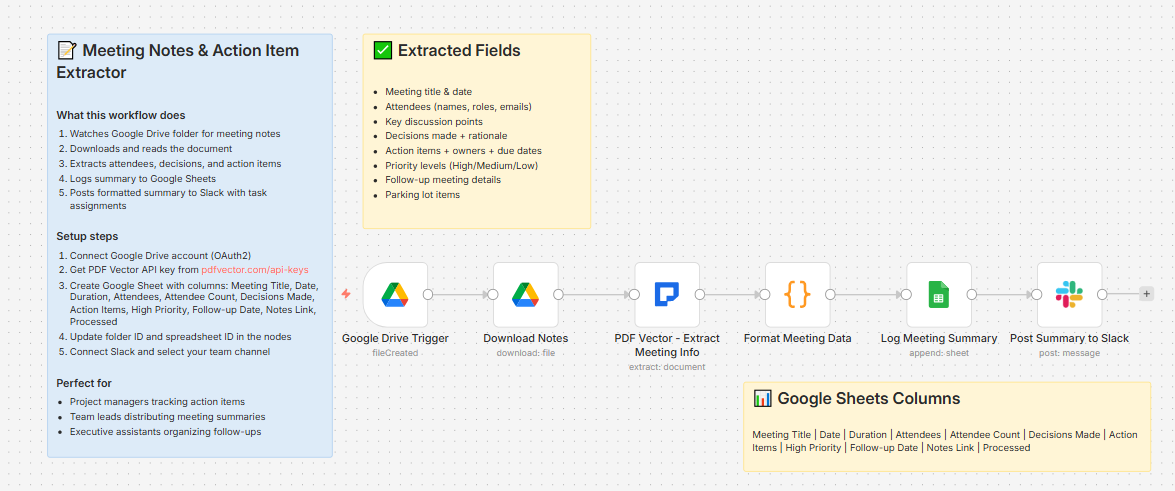
Built a workflow that reads the notes the moment they land in Drive and posts a structured action item list to Slack — before anyone has even opened the doc.
What it does
New file in Google Drive → downloads document → extracts all meeting data → logs to tracker sheet → posts formatted summary to Slack with tasks, owners, and due dates
Takes about 8-10 seconds per document.
What gets extracted
Meeting basics:
-
Meeting title and date
-
Duration
-
Attendees — name, role, email
-
Agenda items
Discussion and decisions:
-
Key discussion points by topic with summary
-
Decisions made with rationale and decision maker
Action items (the important part):
-
Task description
-
Assigned owner
-
Due date
-
Priority level — High / Medium / Low
Follow-up:
-
Next meeting date and purpose
-
Parking lot items (things discussed but deferred)
What lands in Slack
📋 Meeting Summary: Q1 Planning Review

📅 Date: March 12, 2025

👥 Attendees: Sarah Chen, Marcus Webb, Priya Nair, Tom Okafor

✅ Decisions Made (3):

✓ Move launch date to April 7 — team needs 2 more weeks for QA

✓ Approve $12K budget for contractor support

✓ Sarah owns external comms, Marcus owns internal

📌 Action Items (6):

□ Finalize QA test plan → Marcus Webb (Due: Mar 18) [High]

□ Draft contractor SOW → Tom Okafor (Due: Mar 15) [High]

□ Send launch announcement draft → Sarah Chen (Due: Mar 20) [Medium]

□ Update roadmap in Notion → Priya Nair (Due: Mar 17) [Medium]

□ Book QA team for sprint review → Marcus Webb (Due: Mar 14) [High]

□ Send recap to stakeholders → Sarah Chen (Due: Mar 13) [Low]

📆 Next Meeting: March 19 — QA checkpoint

📄 View Full Notes
Every action item tagged with owner, due date, and priority. No digging through the doc.
What lands in Google Sheets
Each row: Meeting Title, Date, Duration, Attendees, Attendee Count, Decisions Made (count), Action Items (count), High Priority (count), Follow-up Date, Notes Link, Processed Date
Running log of every meeting. Filter by High Priority count to see which meetings generated the most critical follow-ups.
Setup
You’ll need:
-
Google Drive (where notes get saved)
-
Google Sheets (free)
-
n8n instance (self-hosted — uses PDF Vector community node)
-
PDF Vector account (free tier: 100 credits/month)
-
Slack (for the summary post)
About 15 minutes to configure.
Works on PDFs, Word docs, and Google Docs exported as PDF. If you’re saving Otter.ai or Fireflies transcripts as text files — those work too.
Download
Workflow JSON:
Full workflow collection:
Setup Guide
Step 1: Get your PDF Vector API key
Sign up at https://www.pdfvector.com — free plan covers testing. Go to API Keys and generate one.
Step 2: Create your Google Sheet
Headers in Row 1:
Meeting Title | Date | Duration | Attendees | Attendee Count | Decisions Made | Action Items | High Priority | Follow-up Date | Notes Link | Processed
Step 3: Import the workflow
Download JSON from GitHub → n8n → Import from File.
Step 4: Configure the nodes
Google Drive Trigger:
-
Connect Google Drive account (OAuth2)
-
Set the folder you’ll drop meeting notes into
-
Event: File Created
Download Notes:
-
Same Google Drive credential
-
Downloads the file as binary data
PDF Vector - Extract Meeting Info:
-
Add new credential (Bearer Token)
-
Paste your API key
-
Binary property is set to
data— correct for Drive downloads
Format Meeting Data:
- No config needed — formats all extracted data automatically
Log Meeting Summary:
-
Connect Google Sheets
-
Paste your Sheet ID
Post Summary to Slack:
-
Connect Slack
-
Select your team channel
Step 5: Test it
Drop a PDF or Word doc with meeting notes into your Drive folder. Check Slack and your Sheet after about 30 seconds.
Accuracy
Tested on a mix of structured meeting notes, executive summaries, and AI-generated transcripts (Otter.ai, Fireflies).
-
Meeting title, date, attendees: ~97% on clear documents
-
Action items with owner: ~93% when tasks are explicitly assigned (“John will…” or “Action: Jane to…”)
-
Action items with due dates: ~88% — improves when dates are written explicitly vs. “next week”
-
Priority extraction: ~85% — works well when priority is stated, infers from language otherwise
-
Parking lot items: ~80% — depends heavily on how notes are structured
Unstructured stream-of-consciousness notes perform worse. Notes with clear headers (Action Items, Decisions, etc.) get the best results.
Cost
Each document uses 3-4 PDF Vector credits. Free tier of 100 credits covers roughly 25 meetings per month.
Basic plan ($25/month) gives 3,000 credits — enough for a busy team.
Customizing it
Add email delivery:
After the Slack node, add a Gmail node to send the summary directly to each attendee. Use the attendees array to loop through email addresses.
Filter by meeting type:
Add a Drive label or filename prefix (“EXEC-”, “SPRINT-”) and use an IF node to route different meeting types to different Slack channels.
Connect to a task manager:
Replace or supplement Slack with an HTTP Request to create tasks in Asana, Linear, or Notion — one node per action item using the actionItems array.
Weekly digest:
Add a second workflow that reads your Google Sheet every Friday and posts a summary of all open action items from the week.
Limitations
-
Requires self-hosted n8n (PDF Vector is a community node)
-
Only processes files dropped into the watched folder — doesn’t retroactively scan existing files
-
Action item extraction depends on clear writing — vague tasks like “follow up on the thing” don’t extract well
-
No deduplication — if the same doc is re-uploaded, it creates a new row
PDF Vector n8n integration: n8n Integration - PDF Vector
Full workflow collection: GitHub - khanhduyvt0101/workflows: Awesome PDF Automation Workflows - A curated collection of ready-to-use automation workflows for PDF processing and document extraction · GitHub
Questions? Drop a comment.