To achieve your goal in n8n—analyzing a table row by row with an AI agent and generating a technical description based on the whole table—you can follow this general approach:
1. **Extract Data from the Table**
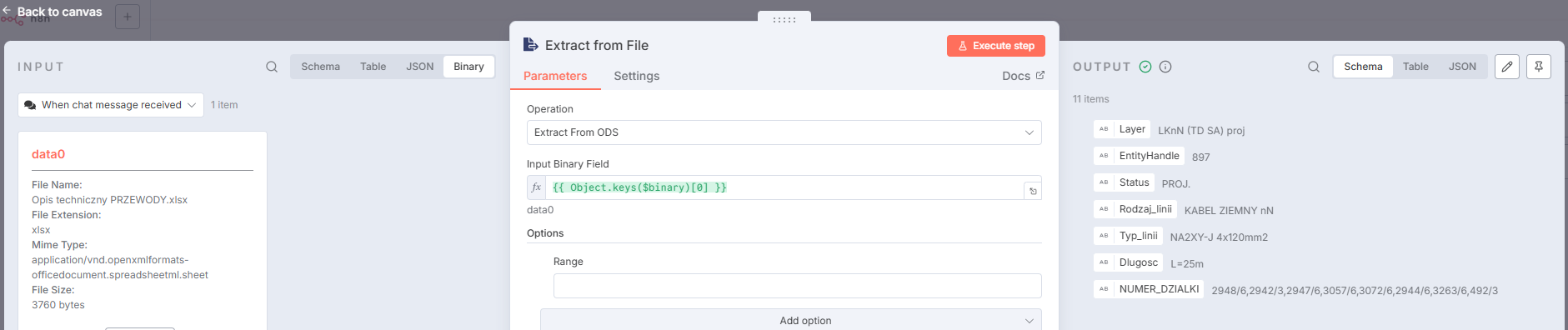
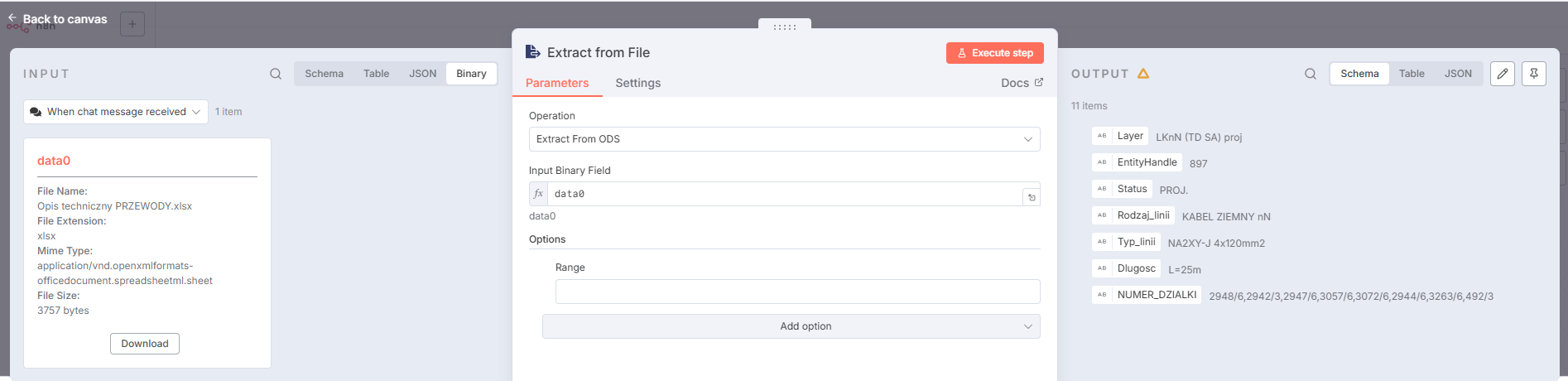
Use the appropriate node (e.g., Google Sheets, database, or CSV node) to fetch all rows from your table.
2. **Aggregate or Format the Data**
If you want the AI agent to consider the entire table at once, aggregate the rows into a single object or string. The [Aggregation node]( Aggregate | n8n Docs ) can help you merge all rows into one item, which is useful for summarization or analysis tasks. This is a common pattern to avoid sending excessive data to the AI model and to provide a concise context for analysis. For example, you can aggregate all rows and then summarize them before sending to the AI agent, as shown in the ERP AI chatbot example: first aggregate, then summarize, then use as context for the agent’s prompt [ERP AI chatbot guide]( ERP AI Chatbot: Advanced ERP Automation with AI – n8n Blog ).
3. **Prompt the AI Agent**
Pass the aggregated data to the AI Agent node. In your prompt, instruct the agent to analyze the data and construct a technical description. For example, you might use a prompt like:
```
Analyze the following table data and generate a technical description: {{ $json.data }}
```
This approach is also used in the ERP AI chatbot, where the context is summarized and then provided to the agent for further analysis or question answering [ERP AI chatbot implementation]( ERP AI Chatbot: Advanced ERP Automation with AI – n8n Blog ).
4. **Output the Result**
The AI Agent node will return the generated technical description, which you can then use in subsequent workflow steps (e.g., update a document, send an email, etc.).
**Tips:**
- If your table is very large, consider summarizing or chunking the data before sending it to the AI agent to avoid context window limitations.
- You can use the [Window Buffer Memory node]( Simple Memory node documentation | n8n Docs ) to help the agent remember previous interactions if you want to process the table in parts.
**Example Workflow Reference:**
This pattern—aggregate table data, summarize, and then analyze with an AI agent—is demonstrated in the [ERP AI chatbot example]( ERP AI Chatbot: Advanced ERP Automation with AI – n8n Blog ).
If you need a concrete workflow template, you can adapt the ERP AI chatbot or the [AI Data Analyst Agent]( AI Data Analyst Agent and Visualization Agent for Large Spreadsheets | n8n workflow template ) to your use case.
P.S if you achieve this, you can pass the course levels as well.
We are here to help in every way so you understand, not just “fixers” .