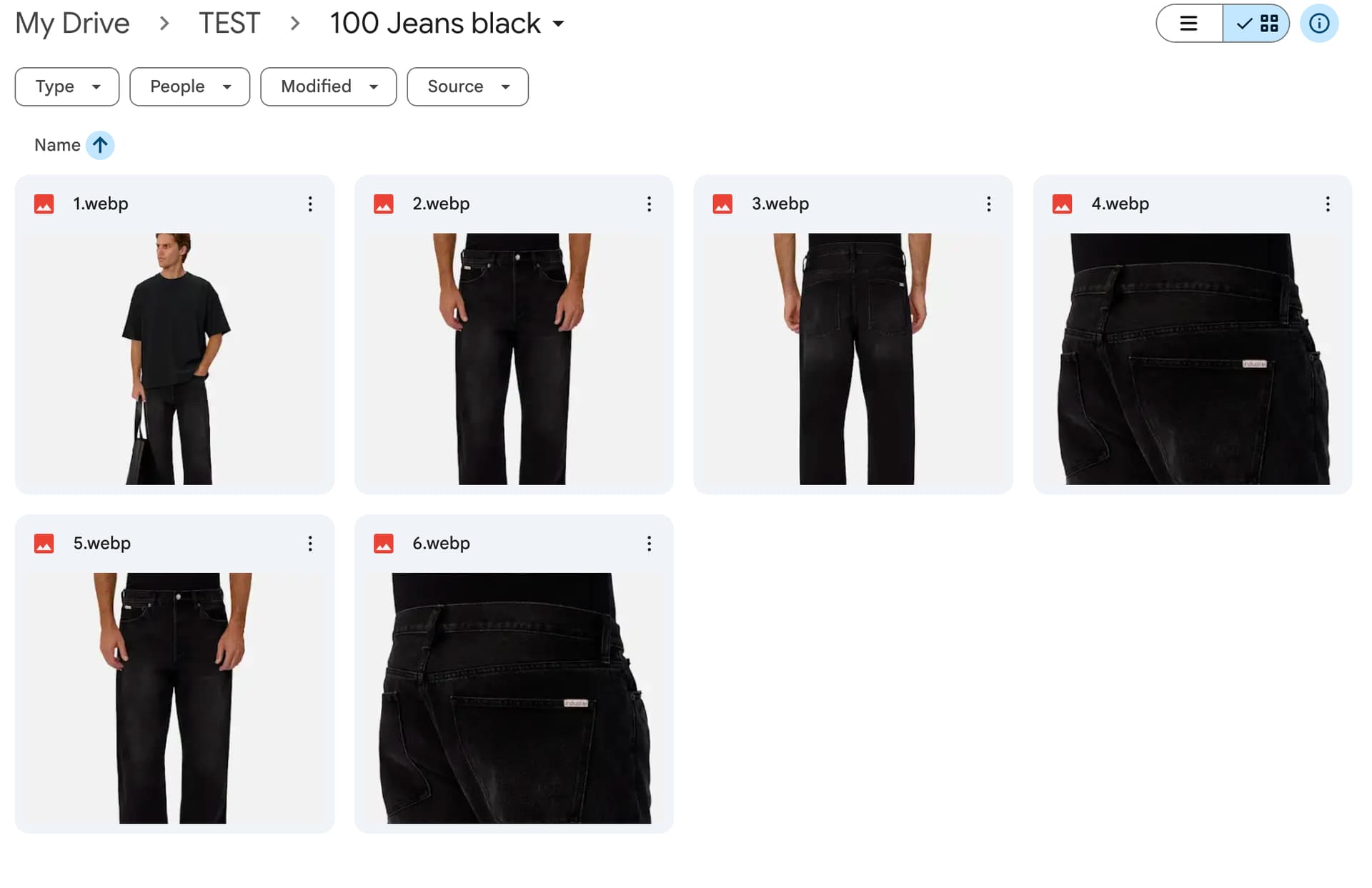
I have 100s folders with around 6 images in each folder
The folder name is the name of the product, then the 6 images inside the folder are front/back/side etc.
So i need a way to copy the folder name onto the 6 images, then at the end of image one add _front, image two add _side so on.
Whats the best way to tackle this process and automate it for all 100+ folders? Help would greatly be appreciated!
Hey @Kye_Smith hope all is well, welcome to the community.
Could you provide an example of what the current file structure looks like?
What differentiates top/bottom/side/etc images right now (something in the image name)?
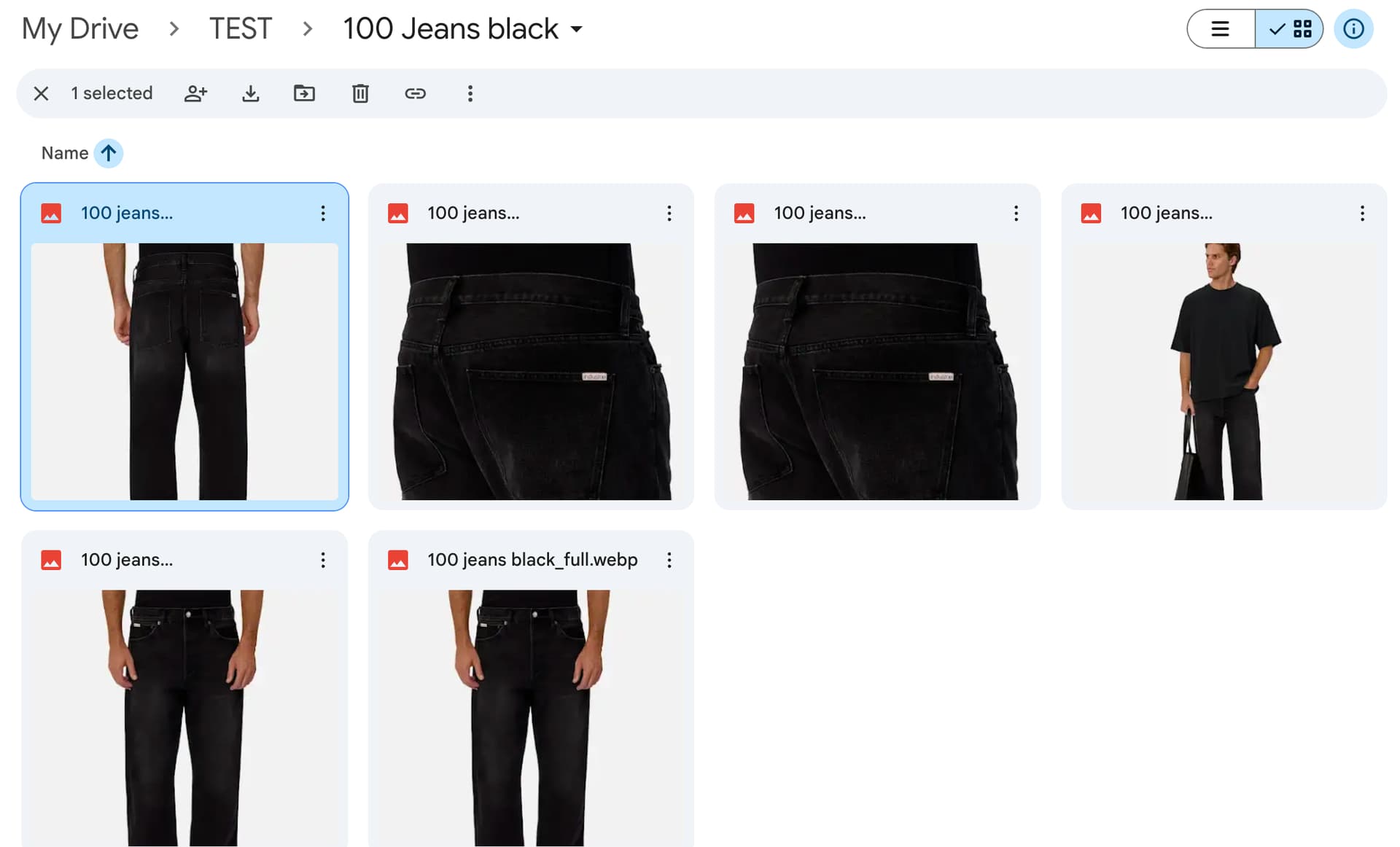
Thankyou for the welcome! excited to learn about the space. Ill attach a picture of the structure, the current names of the images are all unrelated to the images themselves however they are generally in the correct order to be renamed, so picture 1 will need _front added, picture 2 needs _front2 added, Picture 3 needs _side added etc, Picture 4 needs _back added, picture 5 needs _detail added, Picture 6 needs _full added. Added meaning “_full” being added to the name pulled from the folder name if that makes sense.
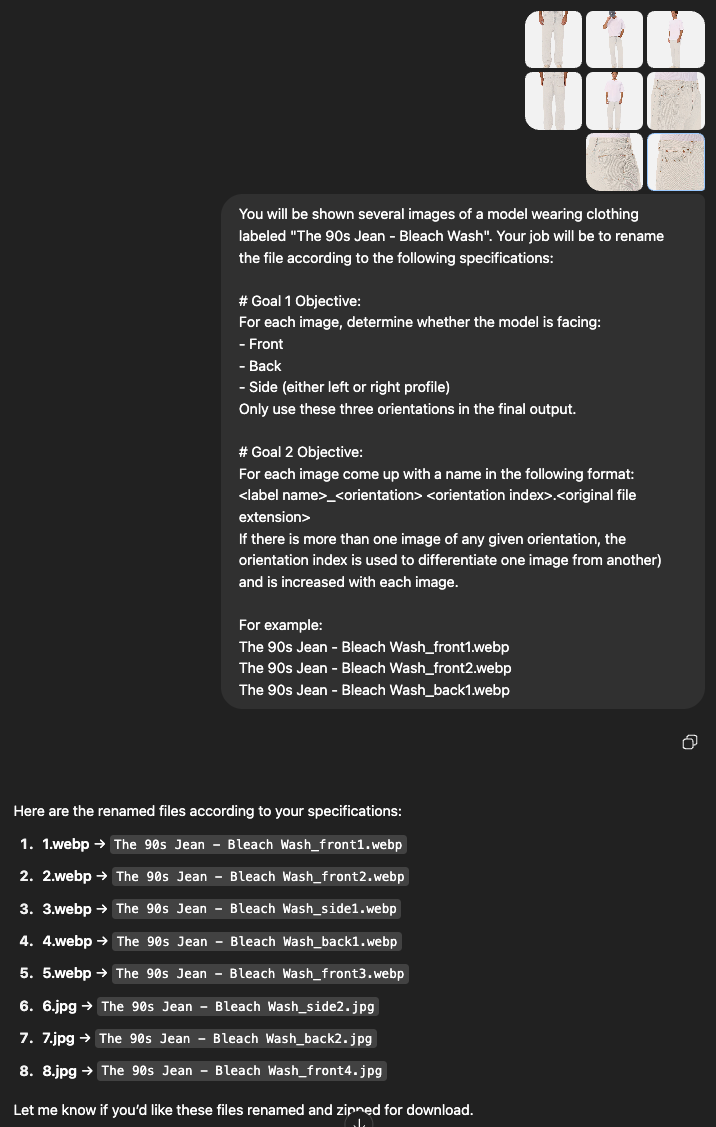
sometimes the images are rarely not in the correct order so im guessing we could use a openai bot to analyse the image to see if its front/side/back, The images are of models standing frontways/sideways etc.
ive added what before naming looks like and after ive manually renamed them
Hey, I started your workflow for you, here is what a simplified version of the workflow could look like:
Right now, what it does is it finds all webp and jpeg files and renames them with (folder_name) - (file_name), so not exactly what you need, but a good start nonetheless. Now all you need to do is integrate interrogating openai for what type of image this is and instead of the (file_name) use a suffix returned by the model. See if you can make it work.
→
To add to the previous message, using openai should do a decent job with identifying the orientation:
My only concern is the cost of the operation, since you’ve mentioned you have hundreds of folder, which probably means that there is going to be a LOT of files to run against openai.
Wow thankyou so much was not expecting such a reply!! thats epic ill give it a go and see how it works and report back with any success and faults!! To clarify the name of the company and jeans are not ours by the way they are just an example haha, the cost of running this should be way cheaper than having someone manually change them by hand which is what we are currently doing (i hope) but we are just experimenting with AI.
No problem, if that gave you ideas and you feel like that helped, kindly mark my post as solution and if you have further specific questions later, open another topic and mention me with @, I’ll be happy to take a look as see if I can help.
@jabbson hey! sorry i wasnt sure how to mark your post as a solution, the workflow works perfectly thankyou! where would i put the open ai node in that workflow? is there a way to replace the original file name (1,2,3, etc) with the orientation instead of adding the orientation onto the entire name too. also would love if i am able to book a zoom call or tip you for your help & future help!
so instead of merging folder names with the file names its just adding the folder name and open ai orientation together and renaming them
also! maybe without the open ai, images can be in folders always named in the correct order, so the workflow can know to rename 1 = _FRONT, 2 = _FRONT2, 3= _SIDE, for a cheaper alternative maybe?
something like this perhaps?
// Pull the original filename
const originalName = $json[“name”];
// Default base name
const baseName = “Alter Of Love Halter Top White _ Polka Dot Curve”;
// Determine suffix based on the original name
let suffix = “”;
if (originalName.startsWith(“5”)) {
suffix = “_DETAIL”;
} else if (originalName.startsWith(“3”)) {
suffix = “_SIDE”;
} else if (originalName.startsWith(“1”)) {
suffix = “_FRONT”;
}
// Combine into the new file name
return baseName + suffix + “.jpg”;