I have a Sharepoint folder that contains PDF files, and other files.
I want to get all PDF files in this folder, and feed to OpenAI AI agent.
I successfully authorized and can Download file one by one by using the SharePoint node, but I do not see any way to Get all the files (not Download), and feed all of them to OpenAI API. I tried OneDrive node as well but also there is no option to do that.
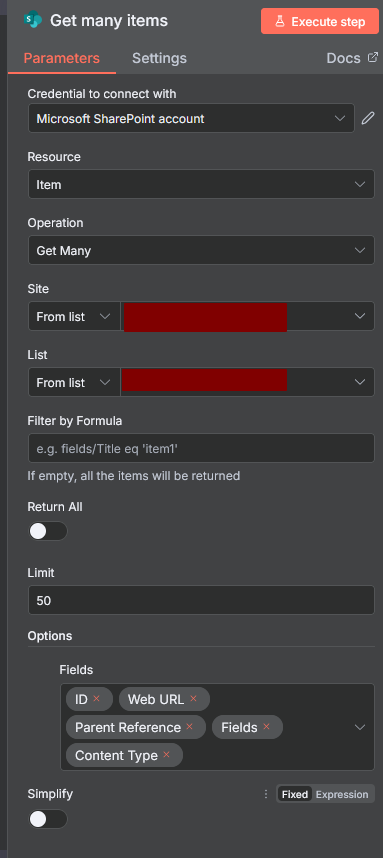
If you want to grab all PDF files from a SharePoint folder using n8n, the process is pretty straightforward. First, since the SharePoint node doesn’t have a direct “List Files in Folder” feature, you’ll need to use the “Item → Get Many” operation, which allows you to fetch all items—including files—from your chosen document library or folder.
After listing the files, you can filter out just the PDFs by using an “IF” node or setting up an expression that checks if the file name ends with “.pdf.” Once you’ve isolated the PDFs, simply use the SharePoint node again to download each one, referencing either the file’s ID or its path.
From there, you’re free to process the files further, such as sending them to the OpenAI node or any other integration you need. If your SharePoint files are also available through OneDrive, you can make things even easier by using the OneDrive node’s “Folder → Get Children” operation, which lists all files in a folder and lets you filter and process them in the same way
In my Get Many Files I turn off “Simplify” and choose all the fields I need. Then base don the weburl i create an IF where the weburl ends with .pdf or .docx etc.
Can you clarify more about the steps after you specify the output, so you create IF node and what nodes are put after it? Could you maybe share the workflow?
Sorry I’ve abandoned the SharePoint flow for now and have nothing to share.
Although I couldn’t get the file type from the “web URL” field (the IF was “Web URL” Ends with .pdf) ; the output doesn’t include the file ID (UUID); instead it includes a index (1,2,3..) for the result. I need the file ID to download a file and it doesn’t seem to be returned or an option.