Describe the problem/error/question
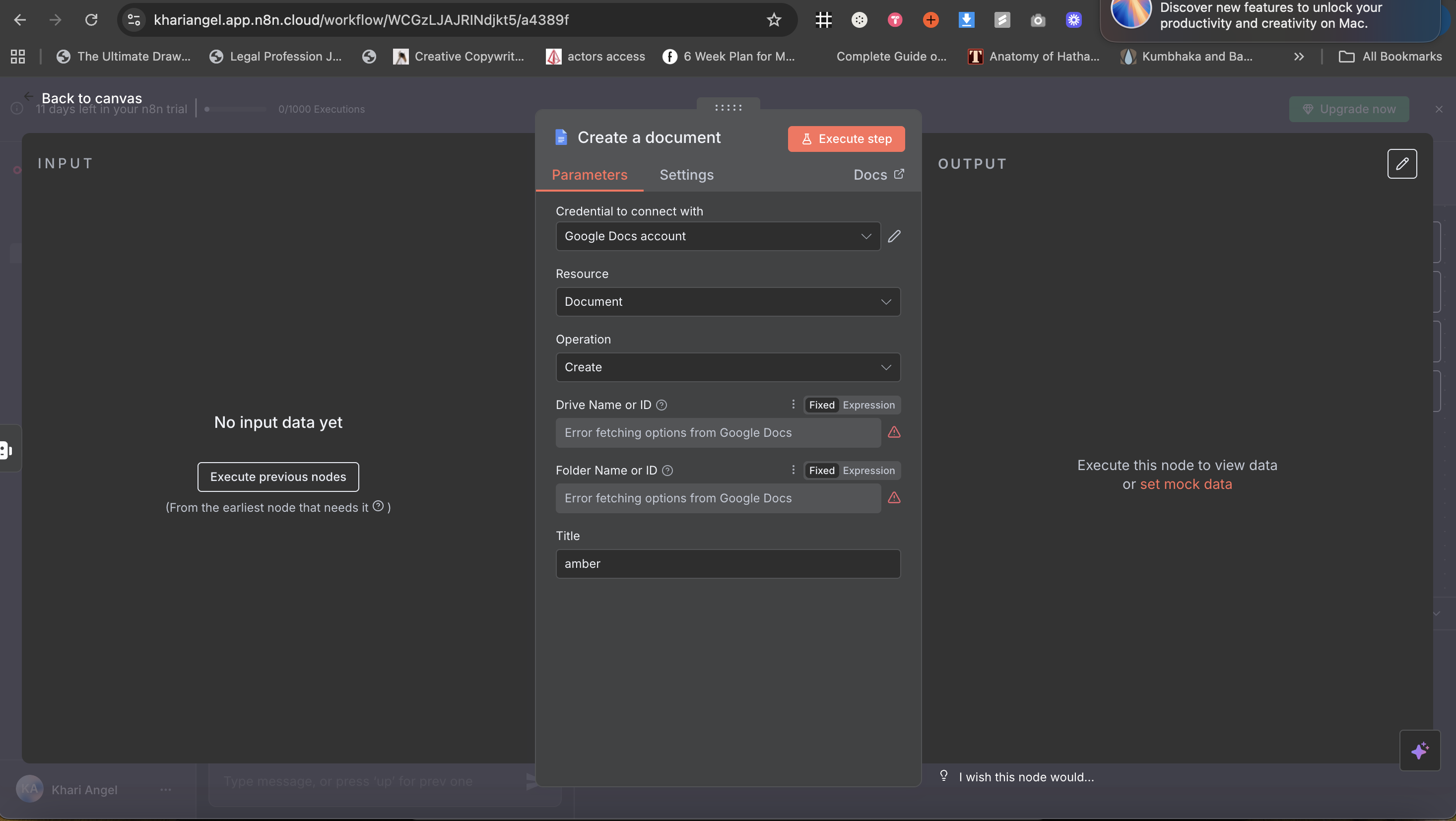
I am trying to test out a agent creating a google doc to write. How can I fetch the folder?
What is the error message (if any)?
Please share your workflow
(Select the nodes on your canvas and use the keyboard shortcuts CMD+C/CTRL+C and CMD+V/CTRL+V to copy and paste the workflow.)
Share the output returned by the last node
Information on your n8n setup
- n8n version:
- Database (default: SQLite):
- n8n EXECUTIONS_PROCESS setting (default: own, main):
- Running n8n via (Docker, npm, n8n cloud, desktop app):
- Operating system:
In order to create Google Docs credentials on n8n, you have to follow the following steps:
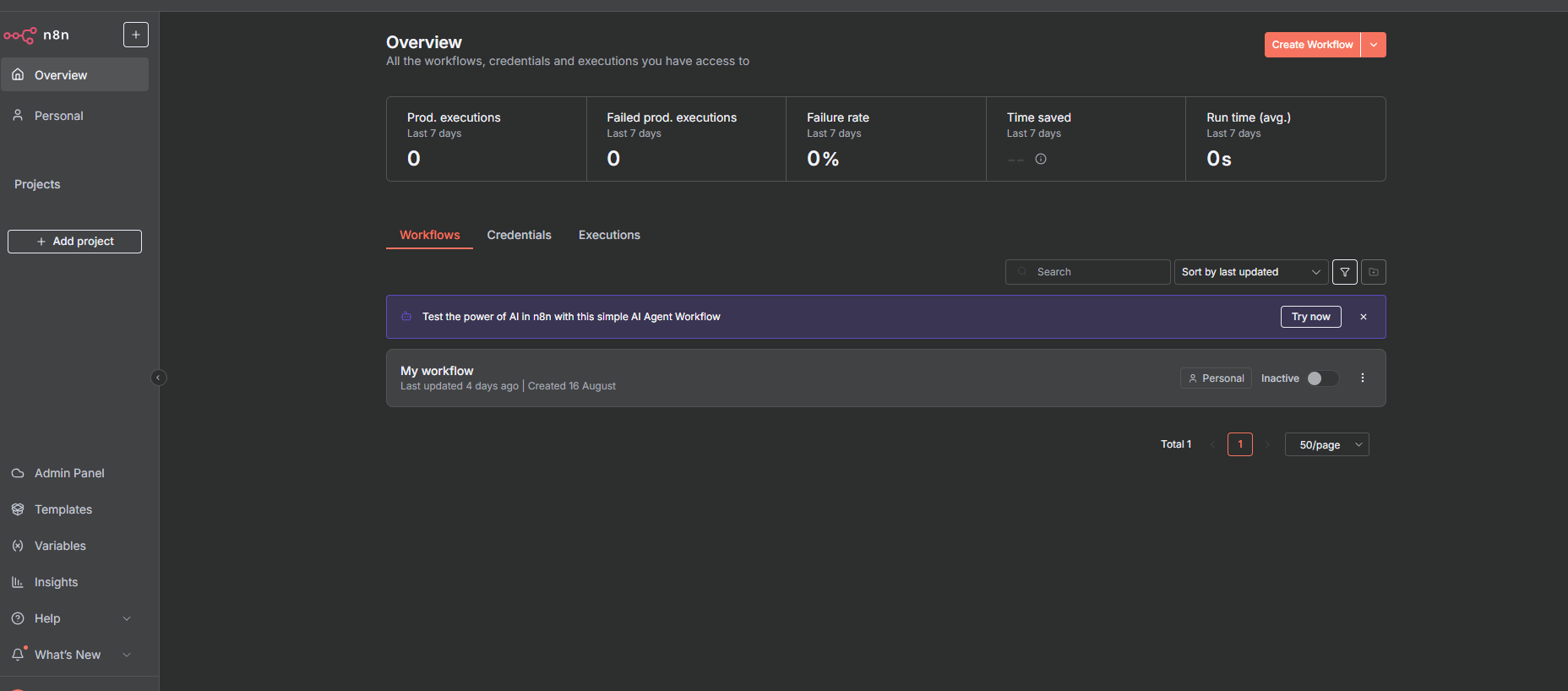
- Go to your n8n’s homepage
- there is a button on Top right “Create Workflow”, from the dropdown Click “Create Credentials”
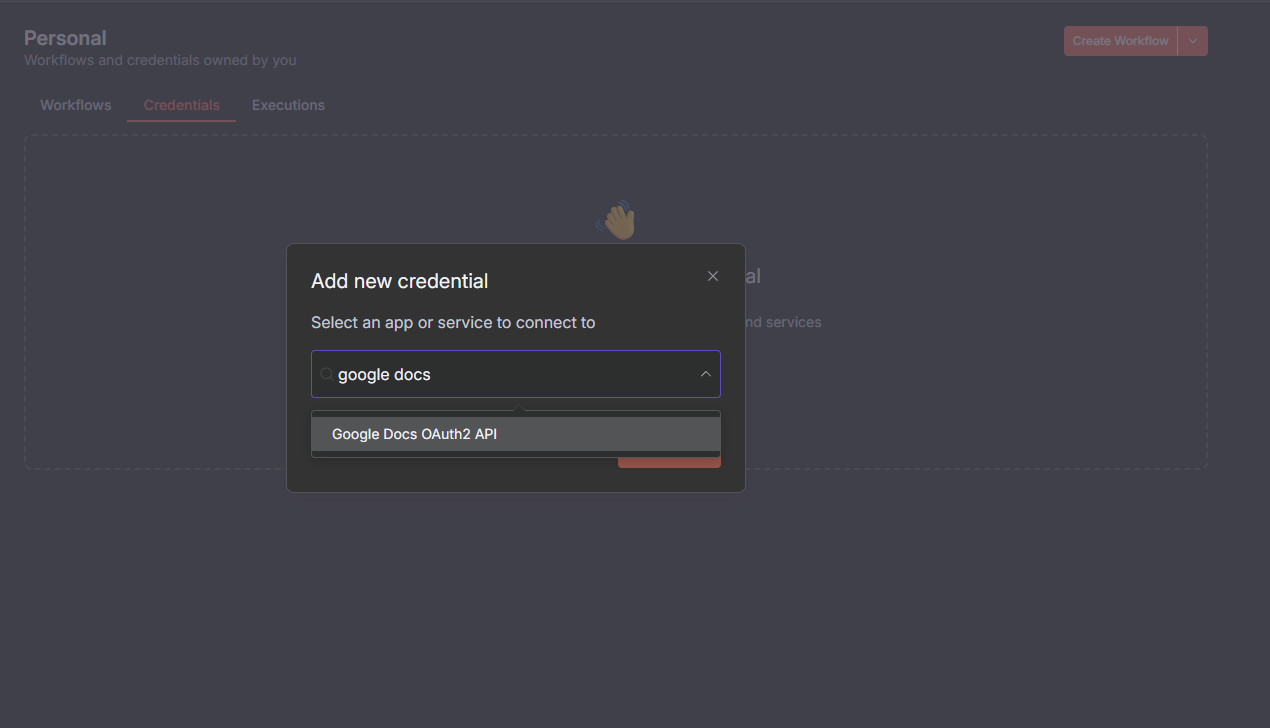
- Search there “Google Docs OAuth2 API”, select that
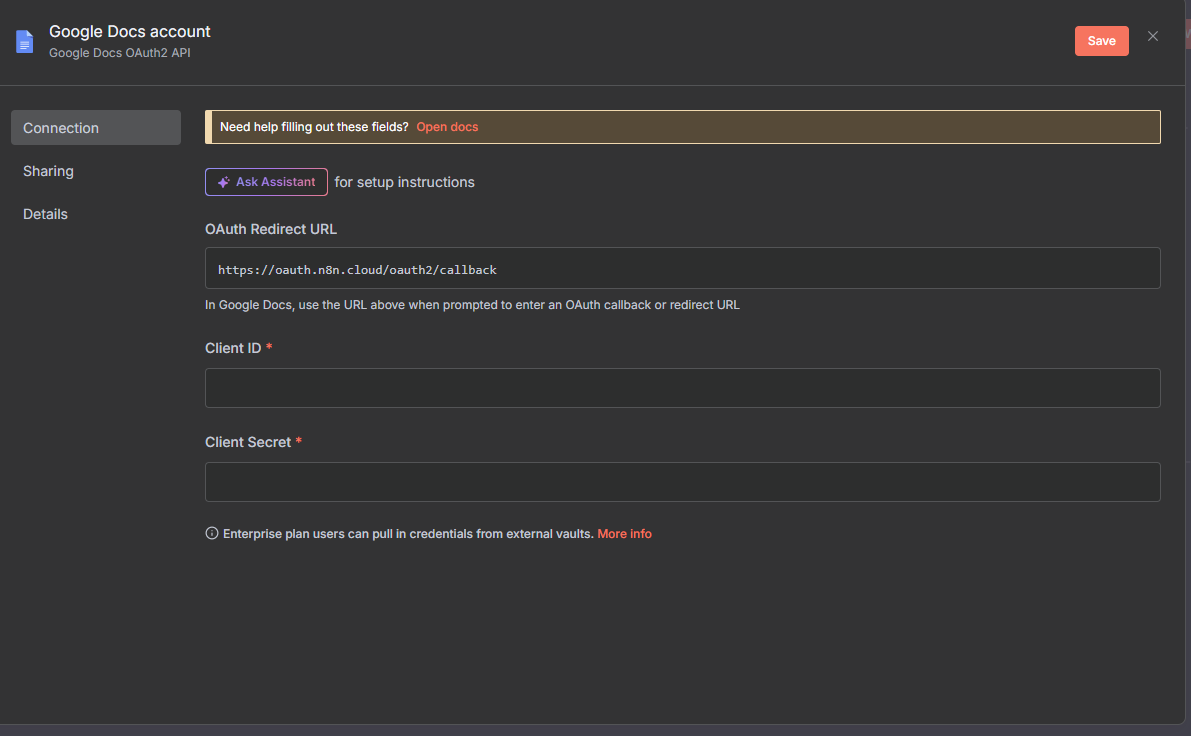
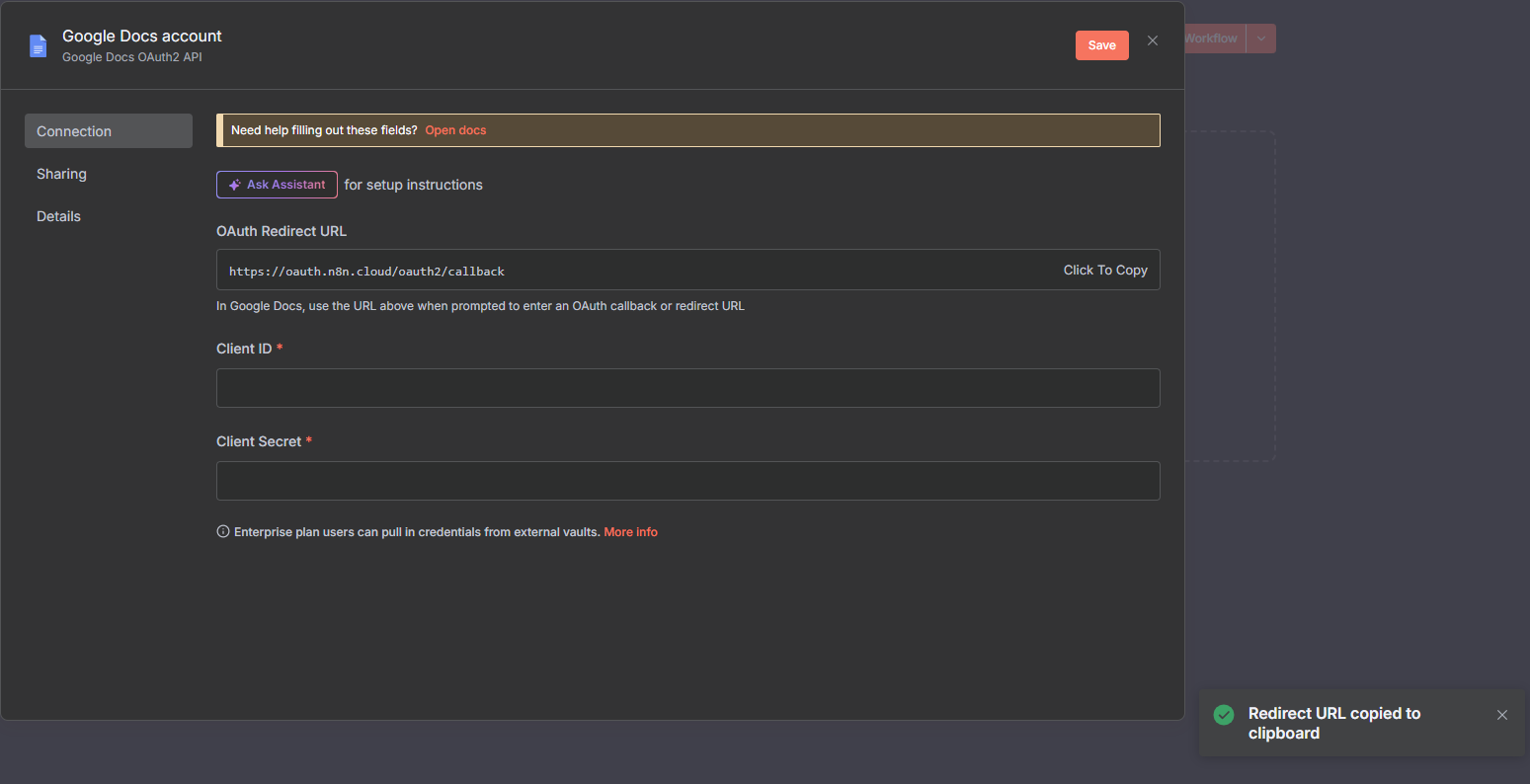
- then a window will appear, as shown below
- Now, open a new tab in your browser
- search console.cloud.google.com
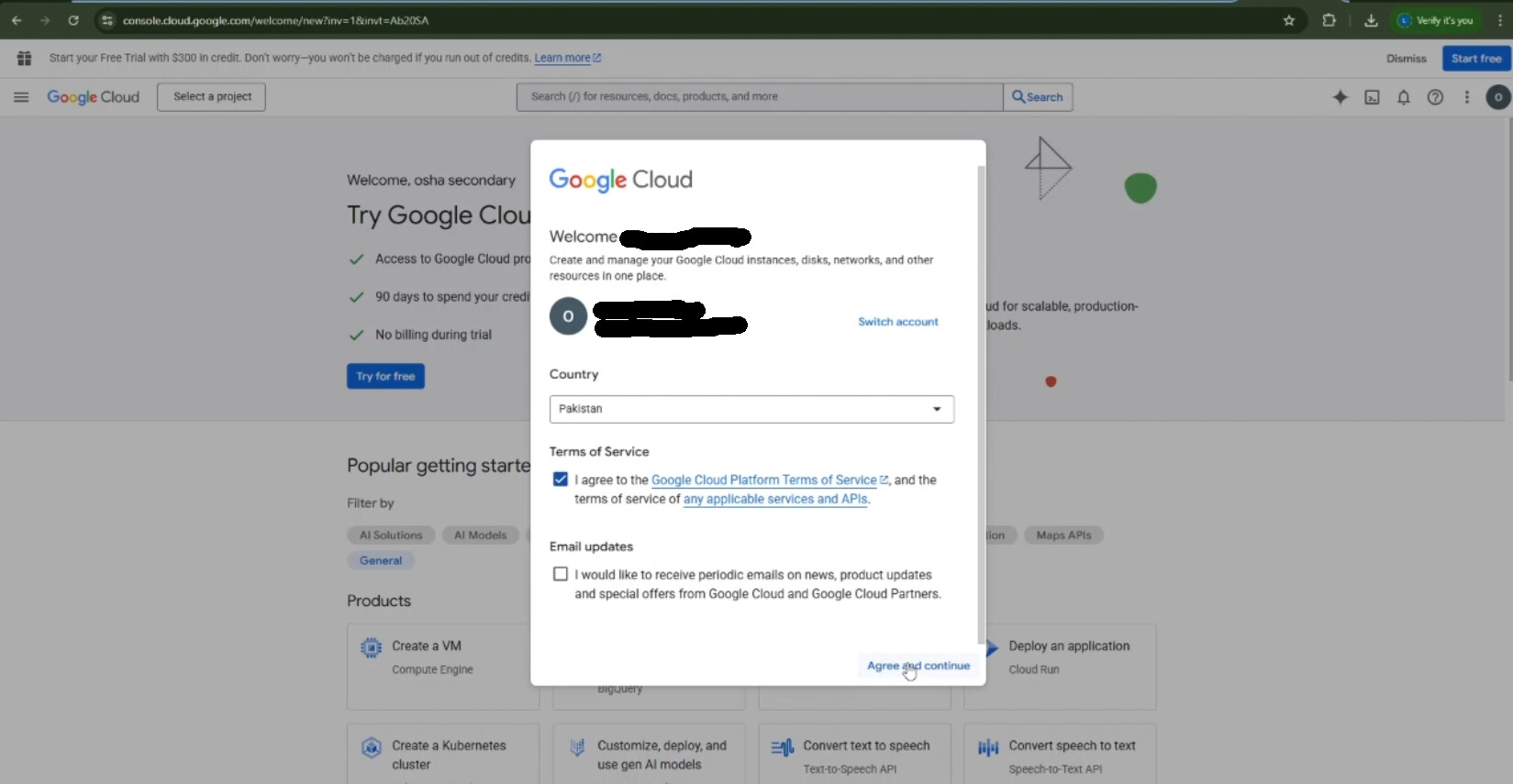
- A window may appear, asking to check the box of Section: “Terms of Service”, check that box, Click button “Agree and Continue”
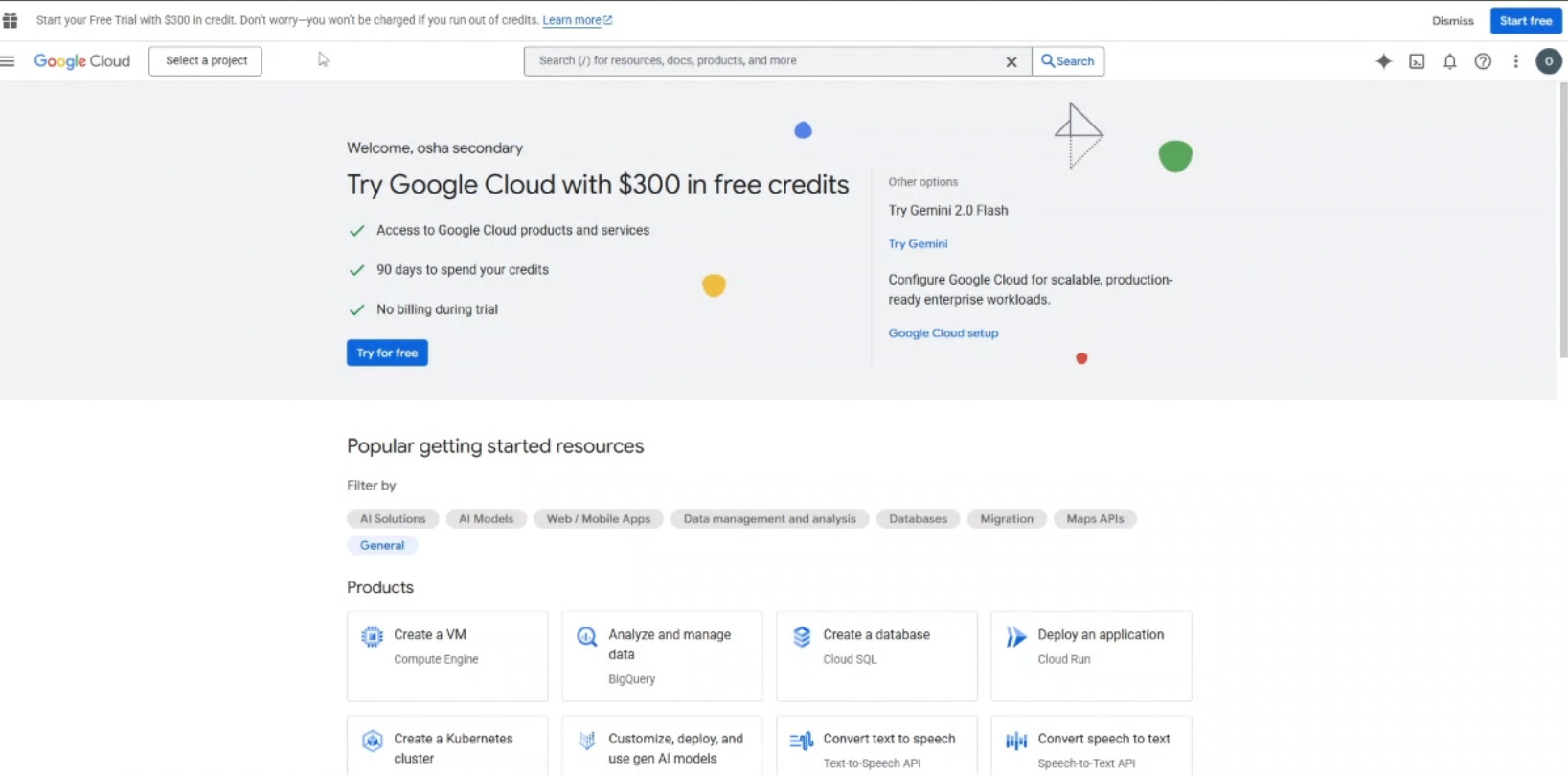
- on the Top left corner you can see a button “Select a Project”, click that
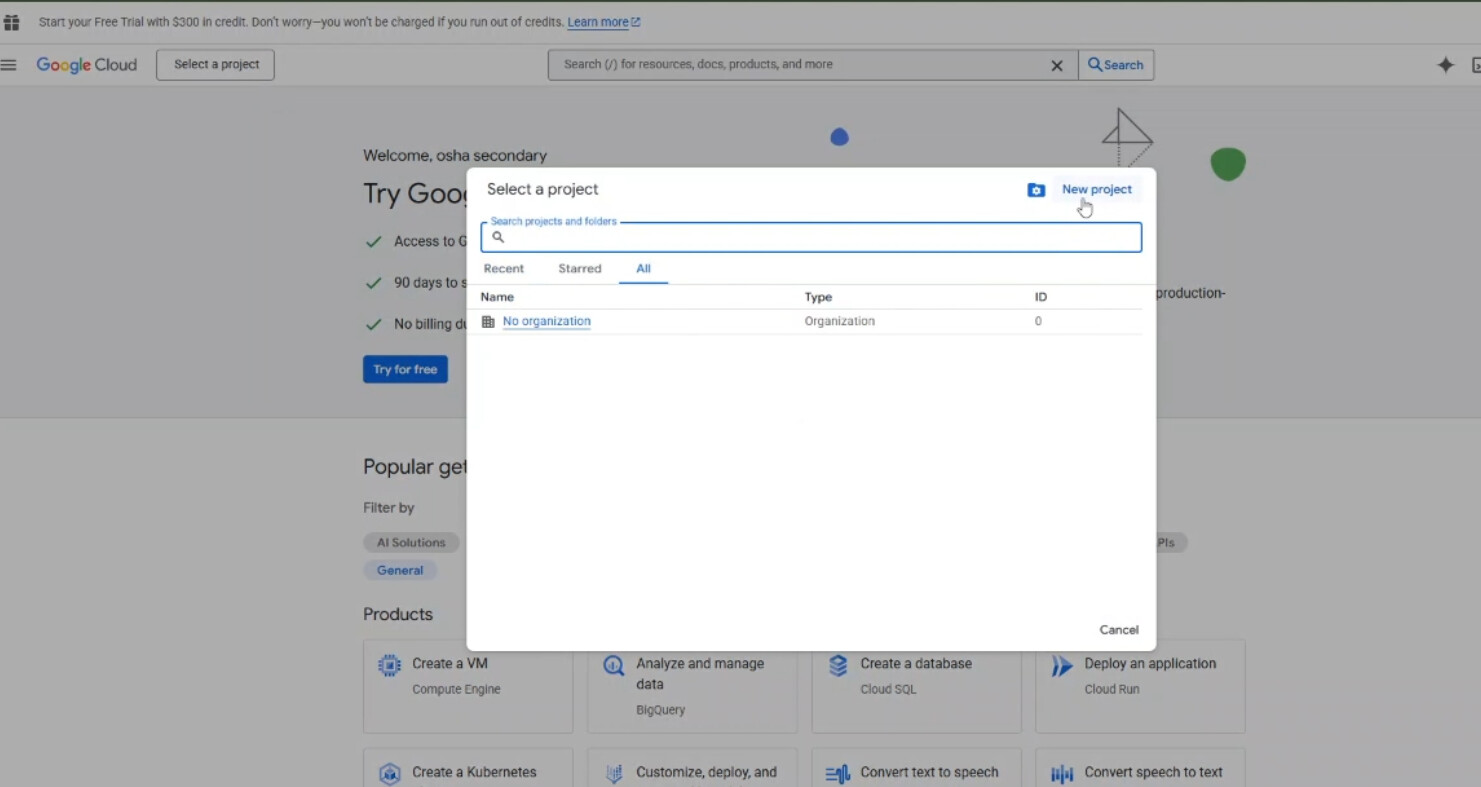
- A new window will appear
- On the top right corner of that window click “new project”
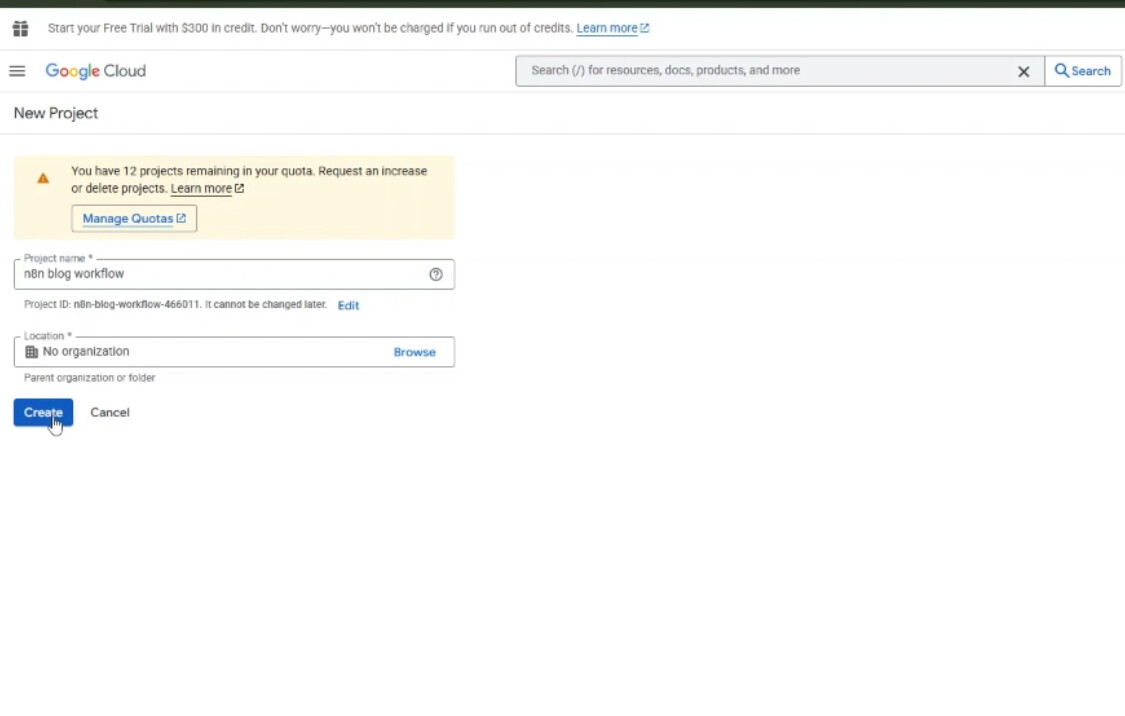
- Give your project a name
- Click button “Create”
-
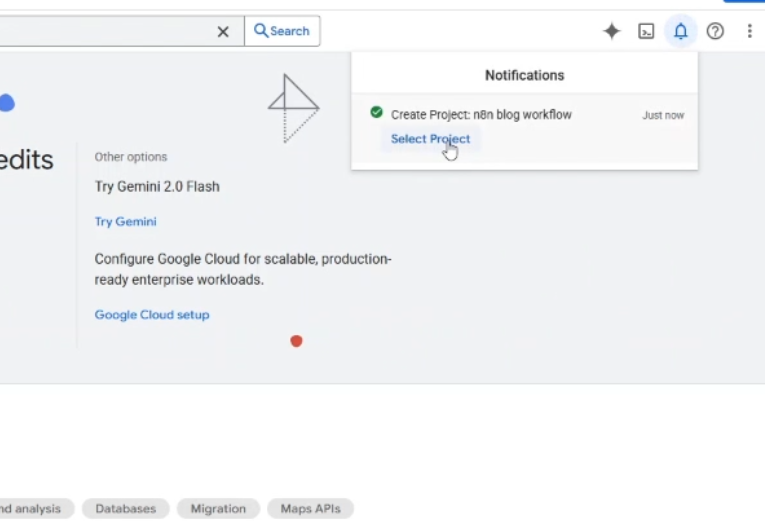
then you can see on notifications panel that project is created.
-
On that panel, click “Select Project”
-
you’ll be redirected to a new window.
-
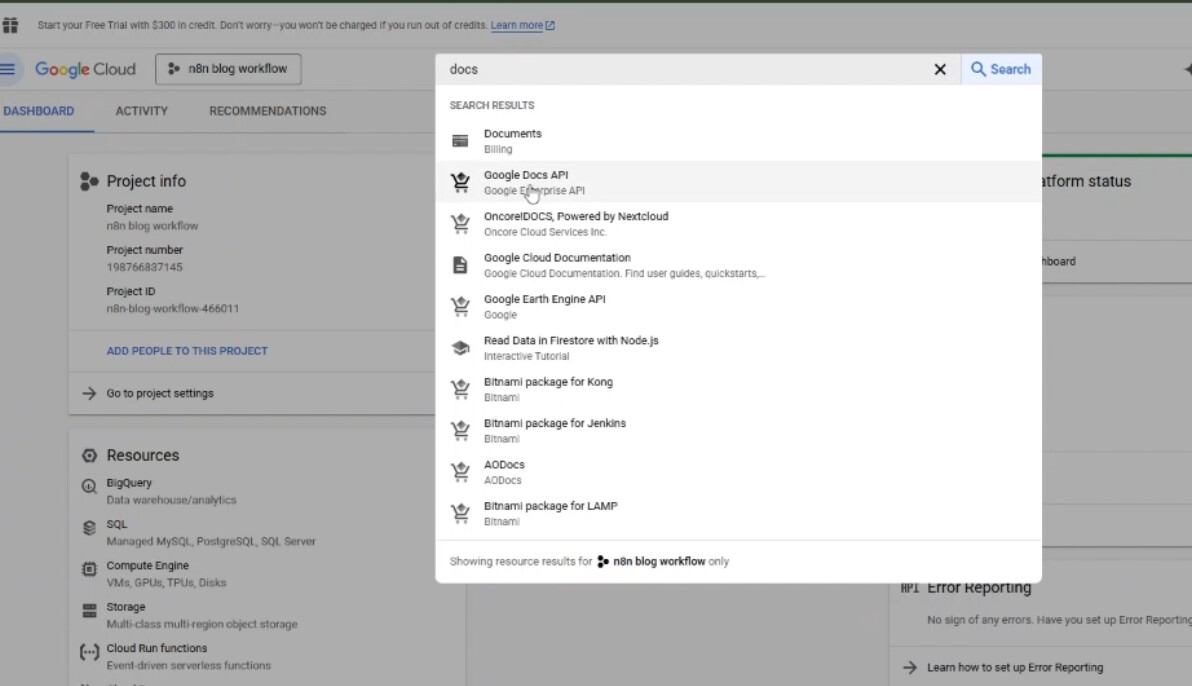
then in the search bar type “DOCS API”
- Select “Google DOCS API” from the search results
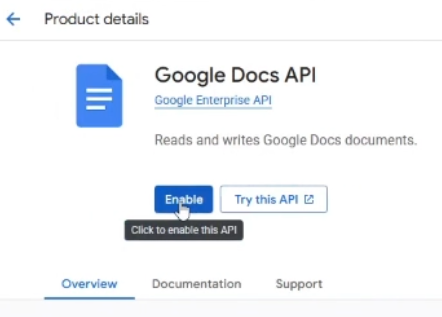
- Click button “Enable”
- You’ll be redirected to a new window
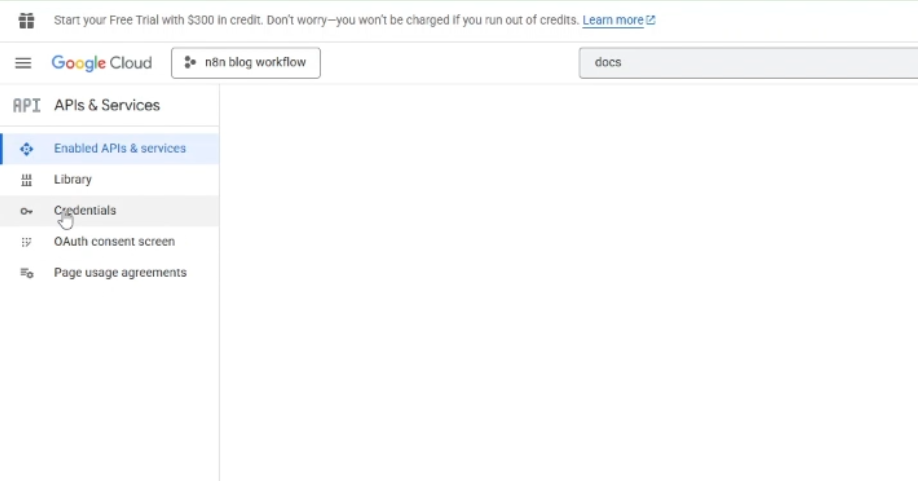
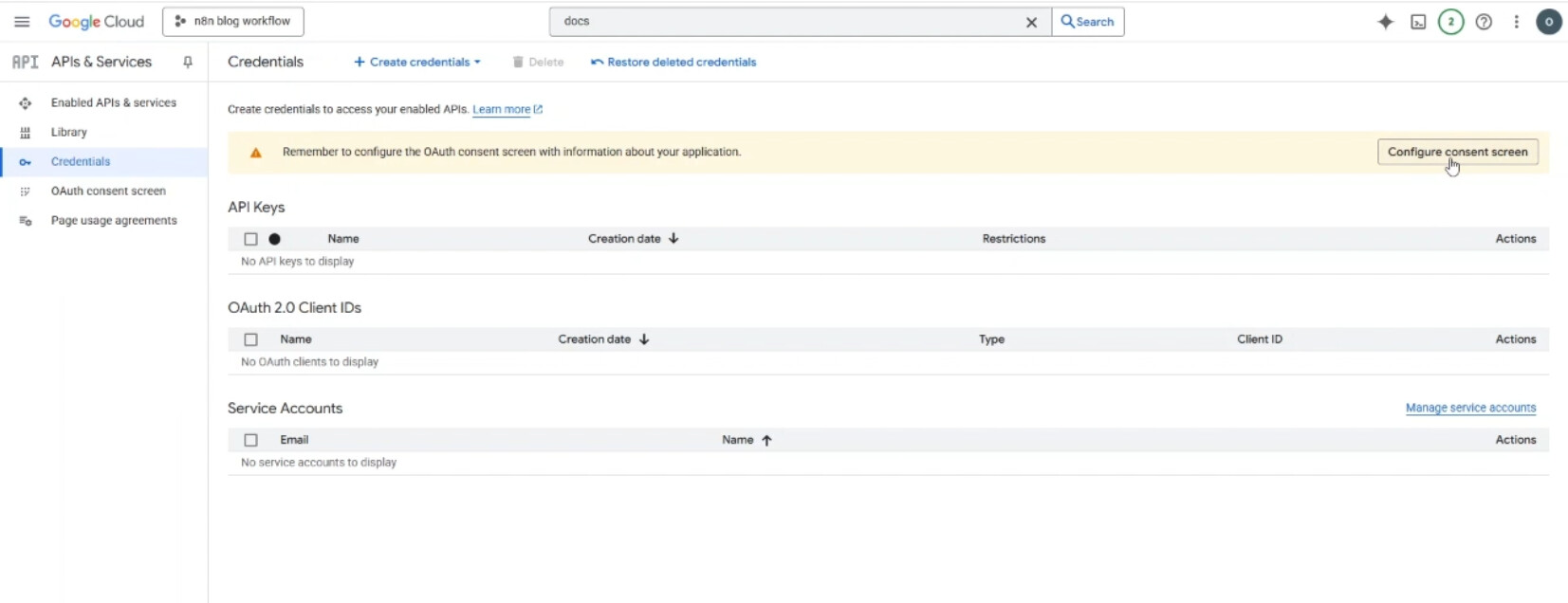
- on that, from the left navbar click button “Credentials”
- then you may see button “Configure consent screen” if you haven’t done this before on your google cloud console.
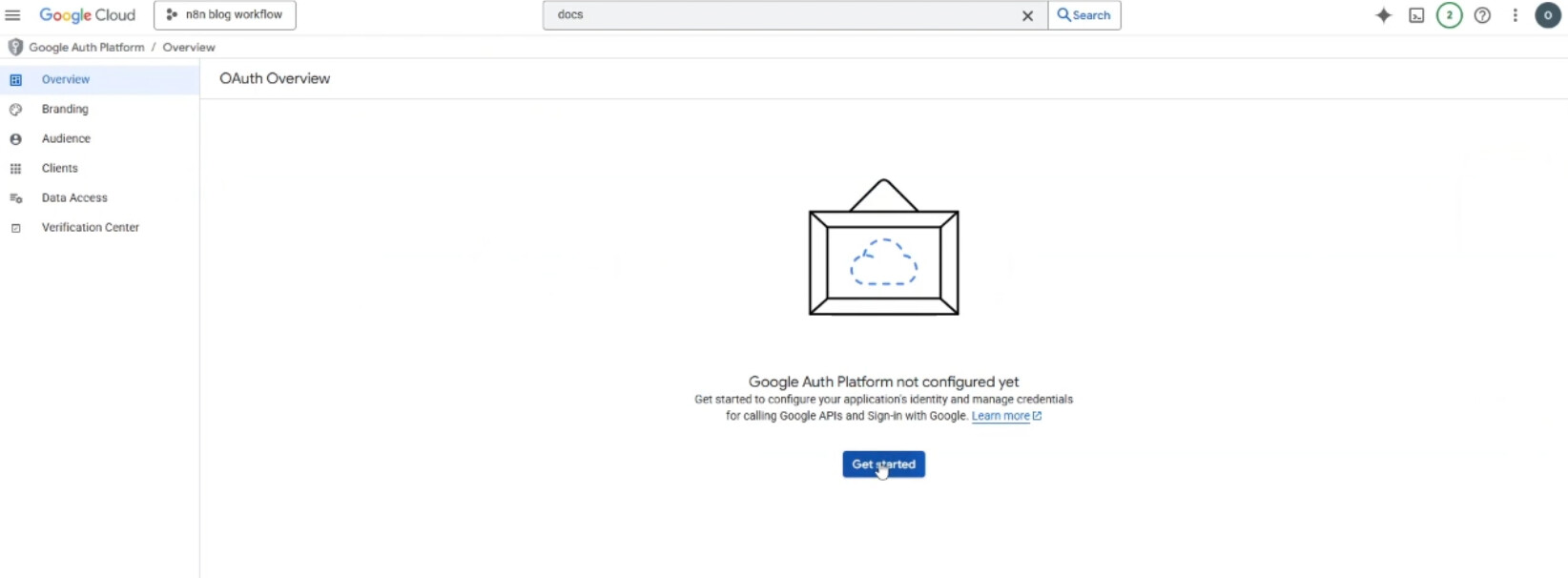
- if you see then: click button “Configure consent screen”
- name your app
- select your email in the field “User Support email”
- click “Next”
- in the “Audience” Section, click “External”
- click “Next”
- in the Contact information Section, put your email in the field “Email Addresses”
- click “Next”
- check box “I agree to the…”
- click “Continue”
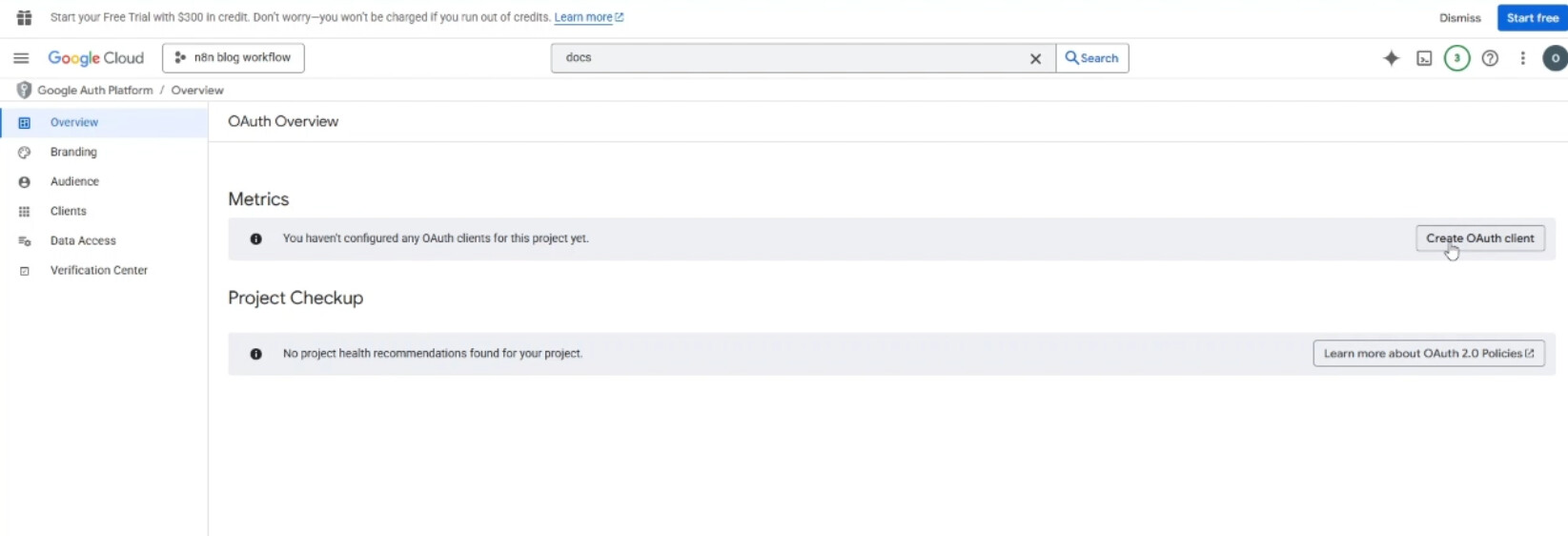
- click “Create”
- Now on the right side, click button “Create OAuth Client”
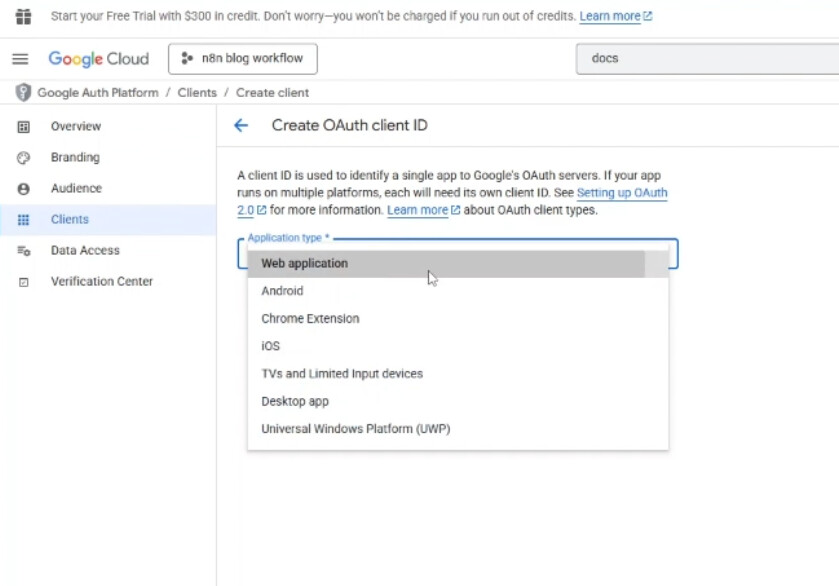
- Select Application type: Web Application
- then come back to your n8n tab in your browser
- Click the “OAuth Redirect URL”, it will be copied automatically
- come back to Google cloud tab in your browser, then in the section “Authorized redirect URIs”, paste the URL
- click button “Create” at the bottom
- you’ll see a window having your Client ID and Client Secret
- for now Copy the “Client ID”
- go back to n8n tab
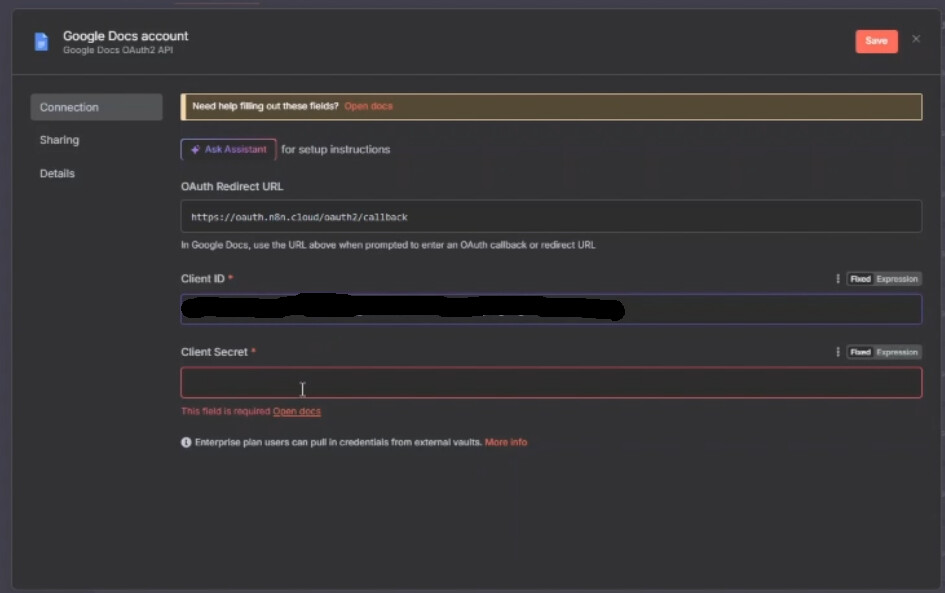
- paste there in the field “Client ID”
- similarly come back to Google cloud tab, copy “Client Secret”
- go back to n8n tab
- paste there in the field “Client Secret”
- then come back to Google cloud tab
- Click “OK” on that window, and it will disappear
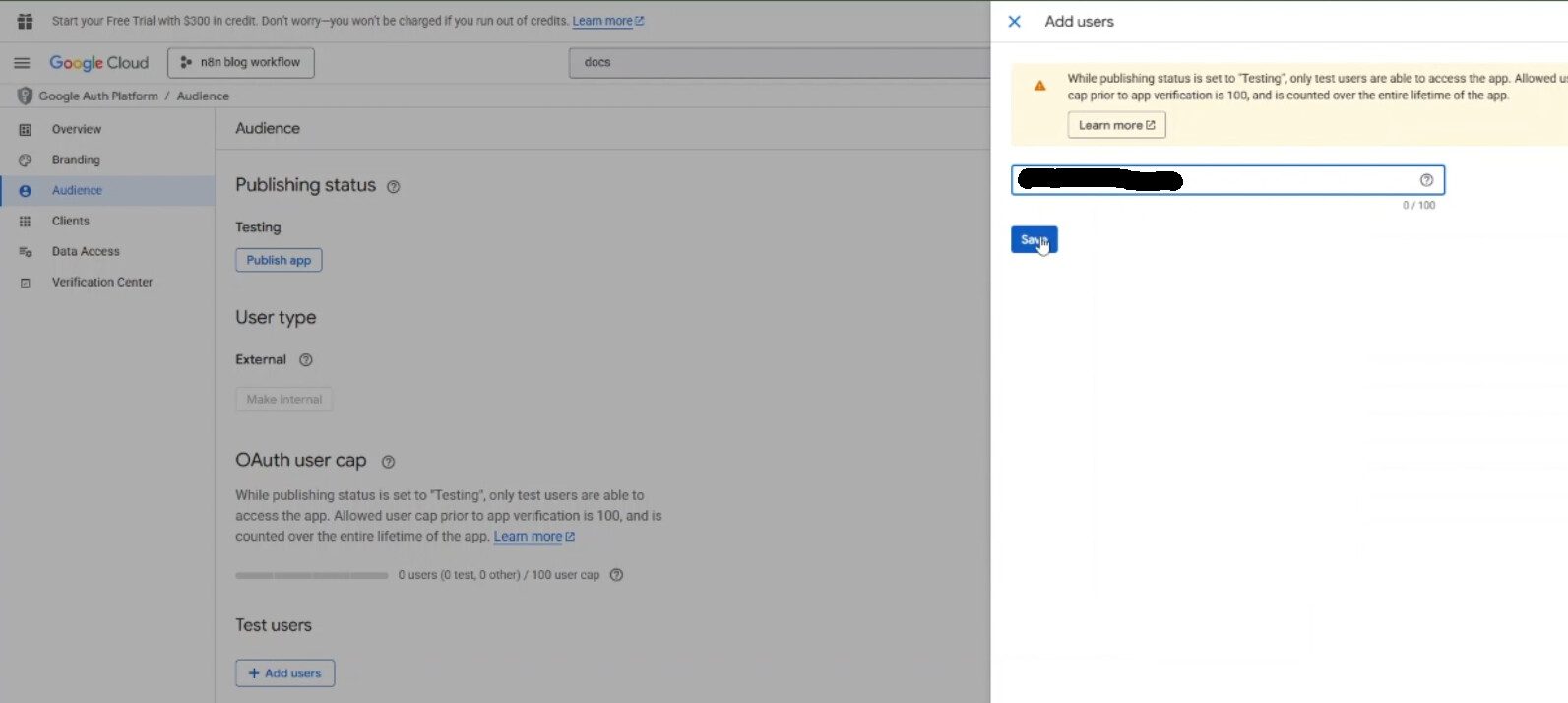
- Now, Click “Audience” from the left tab
- In the “Test Users” section, click “Add users”
- Put your email in the field
- click “Save”
- now wait for atleast 2-3 minutes
- then go back to n8n tab
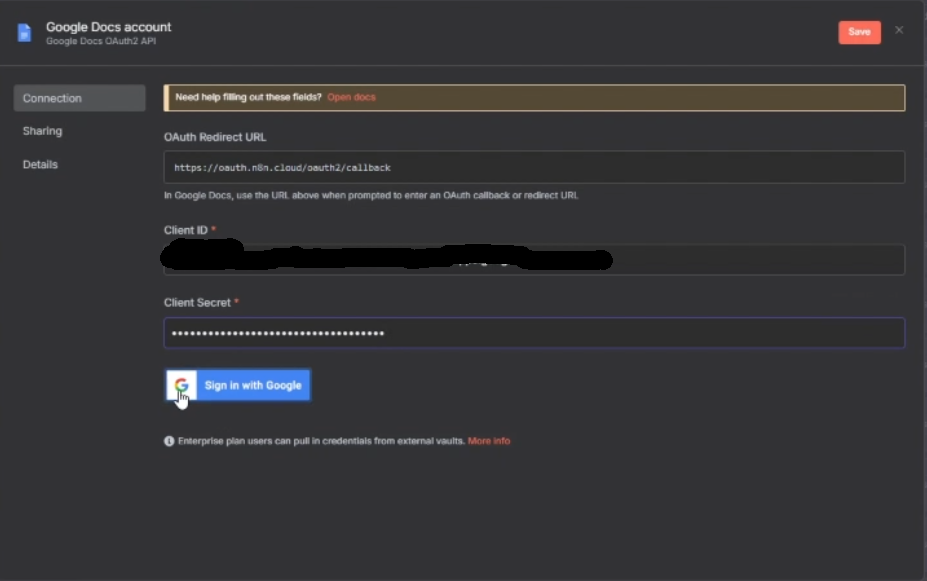
- click “Sign in with google”
- A window will appear: Select your Google Account
- Click “Continue”
- Give all permissions by clicking “Select all”
- then at the bottom, click “Continue”
- Then Click “Save” button on the top right side.
This way you will create the credentials for the GOOGLE Docs account, now you can use them in GOOGLE DOCS node and it will not throw any error.
system
Closed
3
This topic was automatically closed 90 days after the last reply. New replies are no longer allowed.