Retrieving Google Docs ID
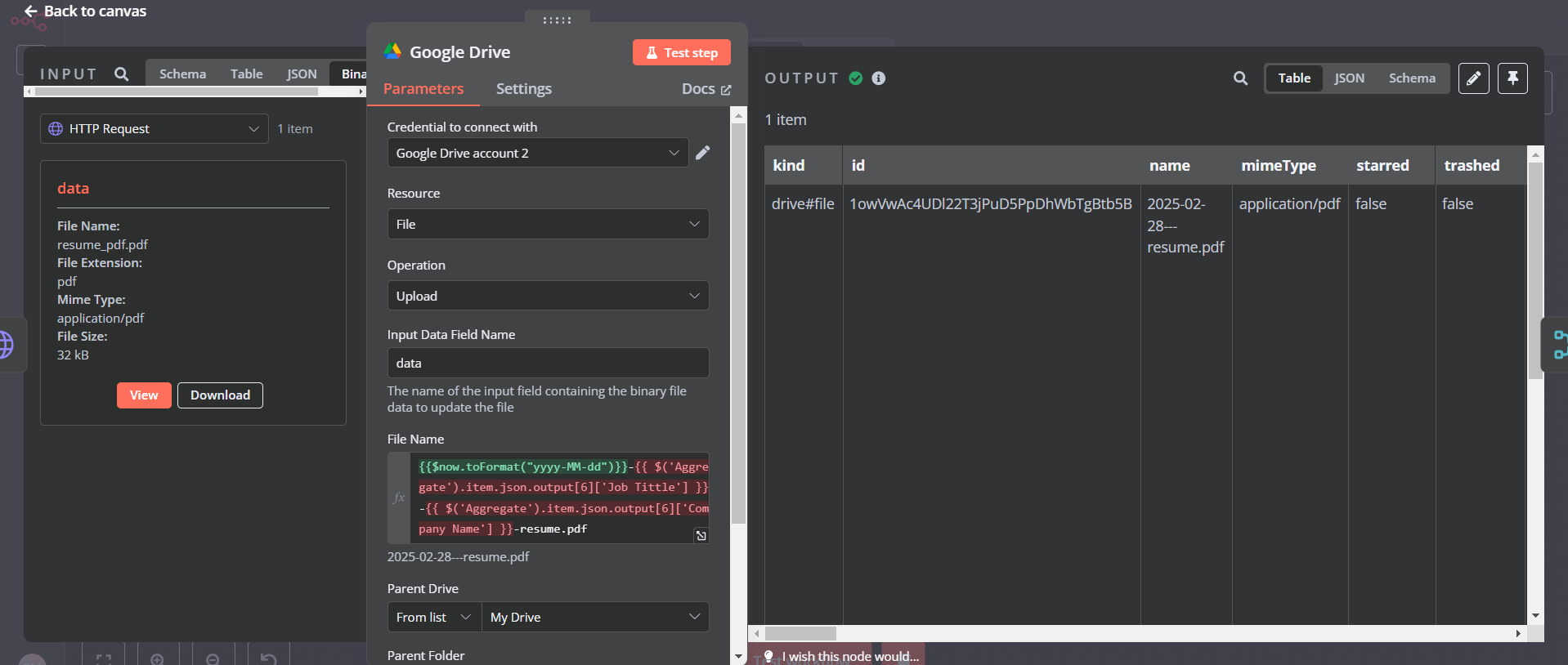
After uploading a document to Google Drive using n8n, you can easily obtain the document ID:
- In the Google Drive node output, look for the
idfield. - This
idis a unique identifier for the document in Google Drive. - Example:
1a2b3c4d5e6f7g8h9i0j1k2l3m4n5o6p7
You can access this ID using an expression like:
text sample here paste it as expression:
{{$node["Google Drive"].json["id"]}}
Updating Google Docs Content
Updating the content of an existing Google Doc is challenging through the standard Google Drive node. Here’s a workaround:
- Use the “Write File” operation to modify the content locally.
- Upload the modified file to Google Drive as a new document.
Note: This method creates a new file rather than updating the existing one. You can update some metadata (like name) of the original file, but modifying its content directly is not straightforward with the current n8n Google Drive node.
Alternative Approach:
For more direct content updates, consider using the Google Docs API through an HTTP Request node. This requires additional setup but allows for in-place document editing.