We have SAML configured with Azure. Auth is just fine.
We have AD groups in SAML that match the user types (owner/admin/member/chatUser).
We cant figure out how to map those AD groups to the n8n_instance_role as described in the doc.
Unfortunaly, there is only detailed docs for Okta and we’ve tried to figure out the same concept in Azure but after several attempts, still no luck.
Has anyone been successful setting up the n8n_instance_role and if so, how did you set it up on Azure?
(be good to publish that info in the n8n docs site as well)
I’ve been through exactly this confusion before, so I totally understand the scenario. Azure works fine, but n8n is much more restrictive than it appears at first glance, and this is usually the sticking point.
Even if you have groups in AD like owner / admin / member / chatUser, n8n doesn’t understand all those roles via SAML.
What n8n Actually Accepts: global:admin or global:member
In n8n, Verify That
SAML SSO is enabled and User role provisioning is turned on in Settings → SSO → SAML; Without this, n8n completely ignores any role coming from the IdP.
In Azure, You Need To
Create a SAML claim named exactly n8n_instance_role and Set the value based on AD group membership; The critical point: The claim name and value need to be exactly these. Any variation (admin, member, OWNER, etc.) will be ignored by n8n.
Practical Tip
Before testing in n8n, inspect the SAML response from Azure using a SAML tracer/viewer and confirm:
The claim n8n_instance_roleis present
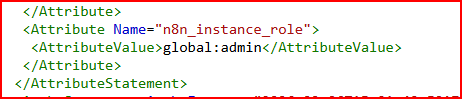
The value is exactlyglobal:admin or global:member
It’s not coming as an array or with multiple values
If this is correct, the role will be applied on login without any issues.
Thanks.
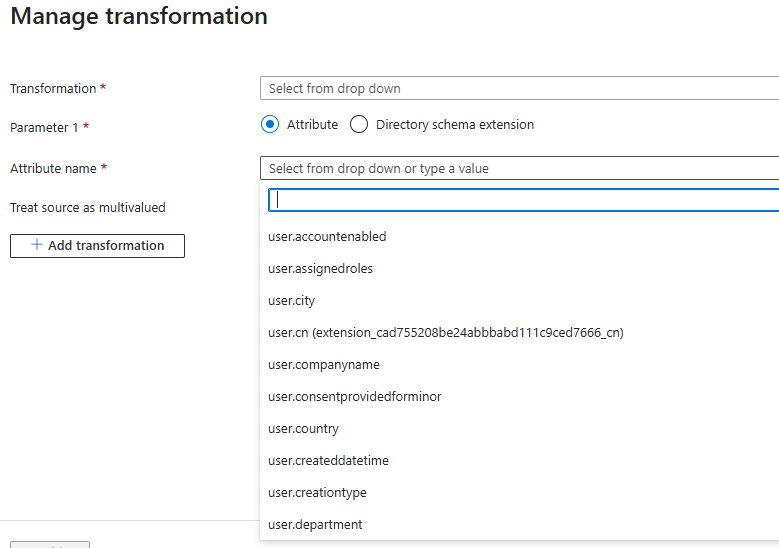
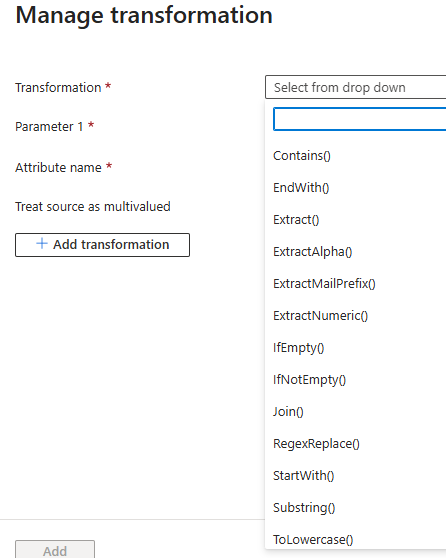
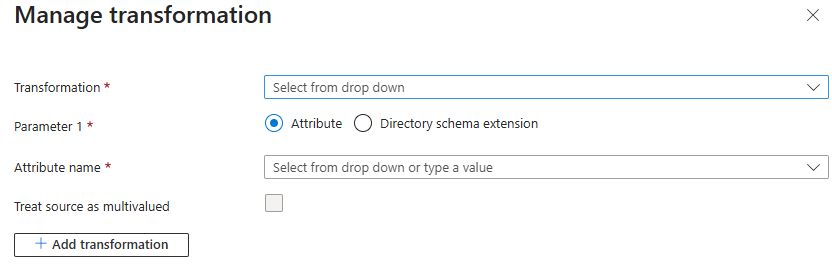
So when we go to add the claim, and add the value, were getting a ‘manage transformation’ screen and we dont know what settings to use for this screen. Then there is attribute list and the ad groups arnt in there… basically this is the step we stuck on. any help describing what you do here would be great. (i’ll upload the screen shots]
Here are the configurations you need to follow in Azure:
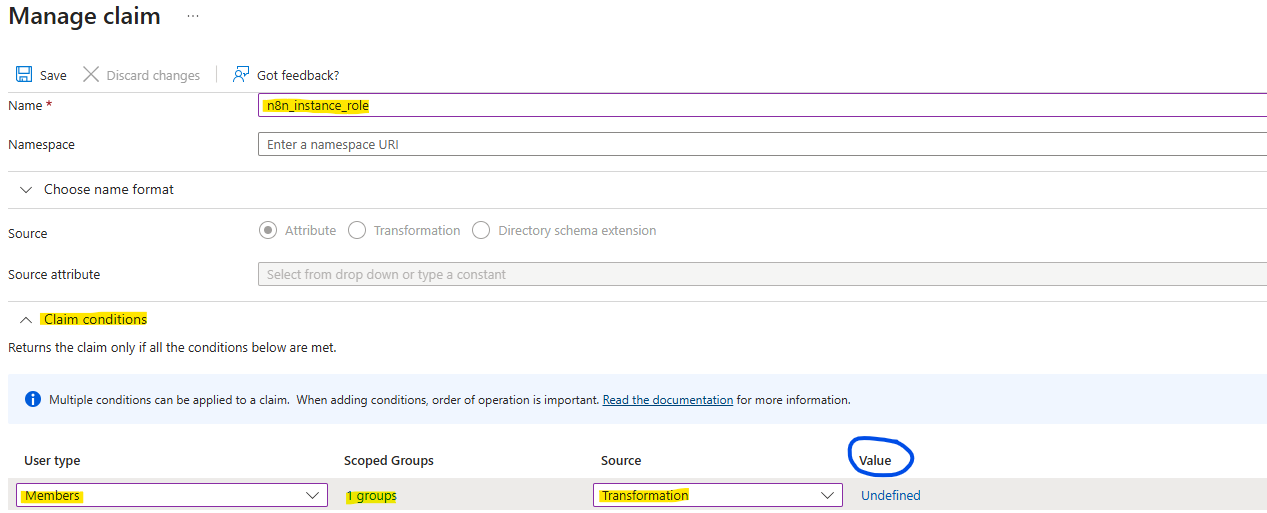
In Manage claim, set Name to n8n_instance_role, leave Namespace blank, and don’t select anything for Choose name format.
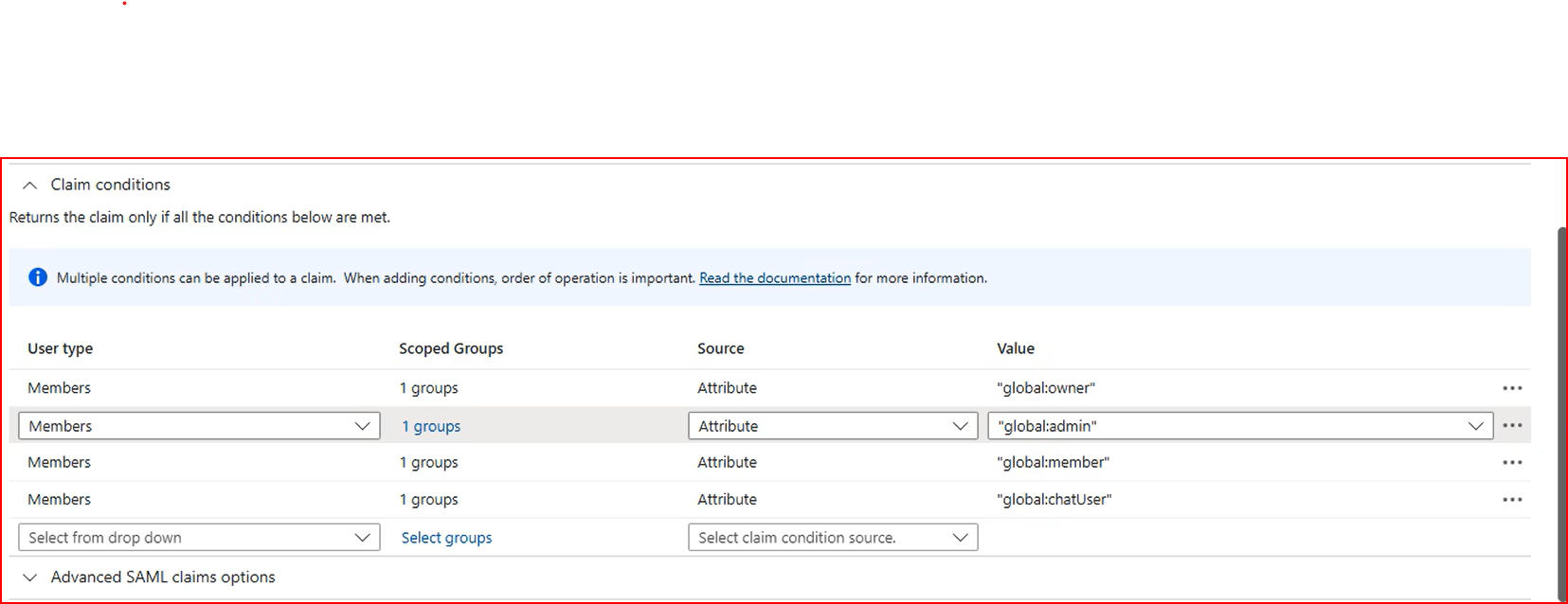
Under Claim conditions, set User type to Members, then in Scoped Groups select your AD group. For Source, choose Value (not transformation), and set Value to global:admin.
For members, you’ll need to create another claim or condition and just swap out the AD group in the Scoped Groups field, keeping everything else the same but changing the value to global:member.
When you inspect the SAML response, you should see something like this:
xml
I think were almost there. I see the attriubute appear in the saml now.. however the order seems wrong. I happen to be in 2 groups and even though we did top down, it seems to match to admin each time rather than owner. What we doing wrong? see screenshot of the claim