Every month I’d download my bank statement, scroll through transactions trying to figure out why I’m broke again. “How did I spend $400 on food delivery?” Decided to automate this instead.
What it does
Watches your Gmail for bank statement emails, extracts every transaction, categorizes your spending automatically, calculates your savings rate, and sends you a Slack summary. Takes about 8 seconds per statement.
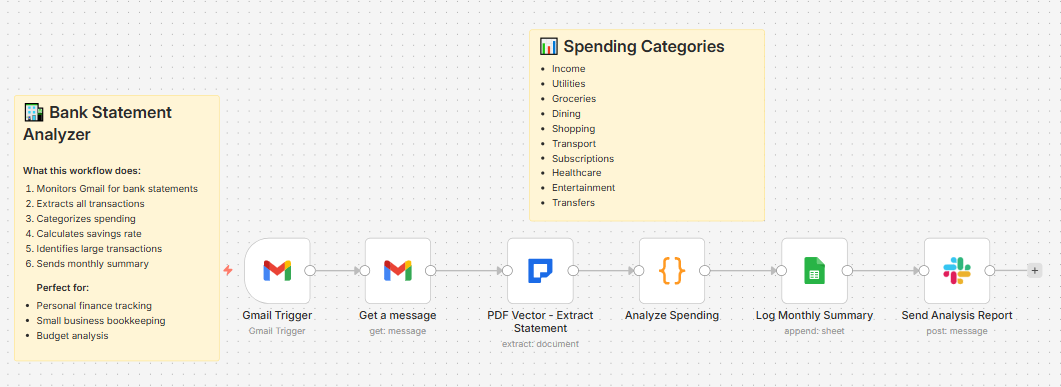
Here’s what you get:
- Every transaction with date, description, amount
- Auto-categorized spending (Dining, Groceries, Subscriptions, etc.)
- Total income vs total spending
- Savings rate percentage
- Large transactions flagged (anything over $500)
- Monthly summary logged to Sheets
How it works
Bank statement email arrives → AI extracts all transactions → categorizes each one → calculates totals → logs to Sheets → sends Slack report
The categorization is the useful part. It recognizes merchants like UBER, NETFLIX, WHOLE FOODS and puts them in the right buckets. No more manual sorting.
Spending Categories
The workflow sorts transactions into:
- Income (deposits, transfers in)
- Utilities (electric, internet, phone)
- Groceries (supermarkets, Costco, Trader Joe’s)
- Dining (restaurants, coffee shops, delivery)
- Shopping (Amazon, Target, retail)
- Transport (Uber, Lyft, gas stations)
- Travel (airlines, hotels, Airbnb)
- Subscriptions (Netflix, Spotify, Adobe)
- Healthcare (pharmacy, gym, doctors)
- Entertainment (movies, games, concerts)
- Transfer (bank transfers)
- Other (everything else)
You can customize these in the PDF Vector node if you want different categories.
What I’ve tested it with
Been running this for a couple months with statements from:
- Chase checking account
- Bank of America
- Wells Fargo
- Capital One
Works with most US bank statement formats. Haven’t tested international banks yet but the extraction should still work - might just need to tweak the category keywords.
Accuracy is around 95% on transaction extraction. Categories are maybe 90% accurate - sometimes AMAZON gets tagged as Shopping when it was actually groceries. Close enough for budgeting purposes.
Setup
Takes about 10 minutes. You’ll need:
- Gmail account (where your statements arrive)
- Google Sheets (free)
- n8n instance (self-hosted or cloud)
- PDF Vector account (free tier: 100 credits/month)
- Slack (optional - skip if you don’t want notifications)
Download
Workflow JSON:
Full workflow collection:
khanhduyvt0101/workflows - Awesome PDF Automation Workflows - A curated collection of ready-to-use automation workflows for PDF processing and document extraction
Setup Guide
Step 1: Get your PDF Vector API key
Go to https://www.pdfvector.com and sign up. Free plan works for testing. Go to API Keys section and create a new key.
Step 2: Set up your Google Sheet
Create a new sheet with these headers in Row 1:
Period Start | Period End | Opening Balance | Closing Balance | Total Income | Total Spending | Savings Rate % | Transaction Count | Processed Date
Copy the Sheet ID from the URL (the long string between /d/ and /edit).
Step 3: Import the workflow
Download the JSON from GitHub and import it into n8n (Import from File).
Step 4: Configure the nodes
Gmail Trigger:
- Connect your Google account
- This watches for all new emails - you might want to add a filter for your bank’s sender address
Get Statement Attachment:
- Use the same Google credential
PDF Vector - Extract Statement:
- Add new credential (Bearer Token type)
- Paste your API key
Log Monthly Summary:
- Connect your Google account
- Paste your Sheet ID
- Make sure sheet name matches (usually “Sheet1”)
Send Analysis Report (optional):
- Connect your Slack workspace
- Pick your channel
- Or delete this node if you don’t want Slack notifications
Step 5: Test it
Activate the workflow, then forward a bank statement email to yourself (or wait for your next statement). Check your Google Sheet after a minute - should see the summary data.
The Slack Report
Here’s what the notification looks like:
📊 Monthly Bank Statement Analysis

Period: 2024-01-01 - 2024-01-31

💰 Summary
• Income: $4,250.00
• Spending: $3,180.45
• Savings Rate: 25.2%

📈 Spending by Category
Dining: $485.30 (15.3%)
Groceries: $412.00 (13.0%)
Shopping: $389.99 (12.3%)
Subscriptions: $156.97 (4.9%)
...

⚠️ Large Transactions (>$500)
2024-01-15: RENT PAYMENT - $1,800.00
2024-01-20: BEST BUY - $649.99
Pretty useful to see at a glance where your money went.
Cost
PDF Vector free tier is 100 credits/month. Bank statements usually use 5-8 credits depending on how many transactions you have. So you can do around 12-15 statements per month for free.
If you have multiple accounts or need more, basic plan is $25/month for 3,000 credits.
Customizing it
Change the threshold for “large” transactions:
In the “Analyze Spending” code node, find this line:
.filter(tx => Math.abs(tx.amount) > 500)
Change 500 to whatever amount you want flagged.
Add more categories:
In the PDF Vector node, edit the prompt to add your own category rules. For example:
- Childcare: daycare, babysitter, kids activities
- Pets: vet, PETCO, PETSMART, pet food
Then add them to the enum in the schema.
Track individual transactions:
Right now it only logs the monthly summary. If you want every transaction in a separate sheet, add another Google Sheets node after “Analyze Spending” and loop through $json.transactions.
Different trigger:
Don’t get statements by email? Swap the Gmail nodes for a Google Drive trigger and drop your PDFs in a folder instead.
Troubleshooting
No transactions extracted: Make sure your bank statement is actually a PDF with selectable text, not a scanned image. If it’s scanned, it should still work but might take longer.
Categories are wrong: The AI uses merchant names to guess categories. If your bank shows transactions as “CHECKCARD 1234 SOME STORE” it might have trouble. You can improve this by adding more examples to the prompt.
Savings rate is negative: That means you spent more than you earned this month. The math is right, you just need to spend less 
Slack not sending: Check that the channel exists and your bot has permission to post there. Try executing just the Slack node manually to see the error.
Limitations
- Designed for US bank statement formats (should work for others but not tested)
- Assumes income = positive amounts, spending = negative amounts (some banks do it the other way)
- Category accuracy depends on how descriptive your bank’s transaction descriptions are
- Won’t catch cash transactions obviously
Why I built this
I tried budgeting apps like Mint and YNAB but they either want access to my bank login (no thanks) or require manual categorization. This pulls from the statement PDF directly, no bank credentials needed, and does the categorization automatically.
Is it perfect? No. But it’s good enough to see “oh wow I spent $600 on food delivery this month” and adjust.
Links
- PDF Vector n8n integration: n8n Integration - PDF Vector
- Full workflow collection: GitHub - khanhduyvt0101/workflows: Awesome PDF Automation Workflows - A curated collection of ready-to-use automation workflows for PDF processing and document extraction
- n8n docs: https://docs.n8n.io/
Questions? Drop a comment if something’s not working or you want to customize it differently. Happy to help.