We just released instance‑level MCP access in n8n, currently in beta. With a single connection to your instance, MCP clients can discover multiple workflows, read details about them, and run them.
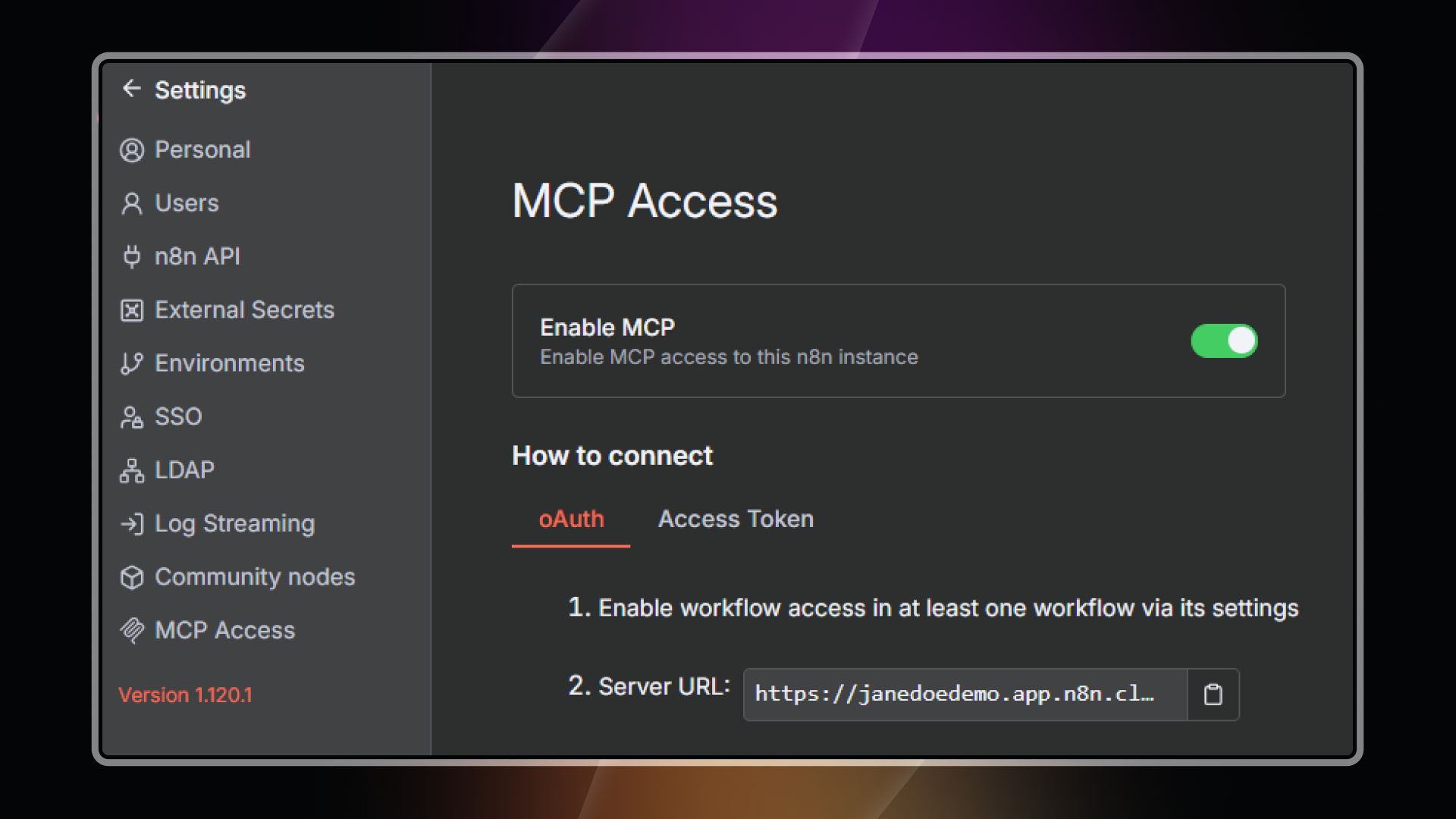
 Please note: MCP access must be turned on at both the instance and workflow level to be available to MCP clients (see details below)
Beta status and versions
This feature is currently in beta.
The Search Workflows and Get Workflow Details tools are in the latest release as of version 1.120 The Execute Workflow tool was added to the next in release as of version 1.121
The near-term goal is for these MCP toolsets to graduate from beta once we address the feedback gathered during the beta period.
For more information and troubleshooting, check out the docs at: https://docs.n8n.io/advanced-ai/accessing-n8n-mcp-server/
What you can do with an MCP client
This feature simplifies integration and improves visibility across AI platforms that support MCP, helping you use your n8n workflows directly in the tools where you already work and experiment. You can list and search workflows you’ve enabled for MCP, retrieve workflow details to understand their purpose before running them, and execute eligible workflows from an AI client session. Workflow triggers currently supported for exposure include webhook, chat, form, and schedule.
How to try it
-
Enable instance‑level access
-
In n8n, go to instance Settings → MCP Access and enable MCP access.
-
Choose OAuth2 or generate an access token.
-
You can revoke specific clients later in the same settings page. [1]
-
-
Expose specific workflows
- Open a workflow → Settings → toggle “Available in MCP.” Only workflows you explicitly enable are exposed.
-
Add the server in your AI client
-
Configure the client with your instance’s MCP server URL and your chosen auth method.
-
Adding short, human‑readable descriptions to workflows helps clients select the right one.
-
How this differs from the MCP Server Trigger node
Instance‑level MCP access provides one connection per instance with centralized authentication and per‑workflow opt‑in so that enabled workflows across your instance are discoverable and runnable without bespoke server setup in each workflow.
The MCP Server Trigger node is configured inside a single workflow and exposes tools only from that workflow, which is useful when you want to craft a specific MCP server behavior within one workflow.
What it’s not
-
Instance‑level MCP access is not a way to build or edit workflows from an AI client; authoring remains in n8n.
-
It is not blanket exposure. You must enable MCP at the instance level and then enable each workflow individually.
-
It is not per‑client scoping - any connected client sees all workflows you’ve enabled for MCP at this time.
Notes on safety and access
There is a two‑level opt‑in, at the instance level and per workflow. Both OAuth2 and access token authentication are supported, and you can revoke client access in “Settings → MCP Access”
If you run into issues during setup, the documentation page includes connection instructions, eligibility rules, and troubleshooting steps. https://docs.n8n.io/advanced-ai/accessing-n8n-mcp-server/
Let us know what you think!