Growing a LinkedIn Company Page usually requires time, consistency, and manual outreach—but with Browserflow + n8n, you can turn the entire process into a hands-off growth engine.
This workflow automates everything from scraping LinkedIn engagement → sending connection invites → tracking acceptance → inviting new connections to follow your company page.
Here’s how to set it up.
 Requirements
Before you begin, make sure you have:
 A Browserflow account
(7-day free trial available)
A Google Sheet for storing leads
Make a personal copy of my Google Sheets template.
The n8n workflows
I added the template for my workflow as a JSON as a reaction to this post. Please use it for a jumpstart!
 Step 1: Retrieve Leads From LinkedIn Posts (Scraping Workflow)
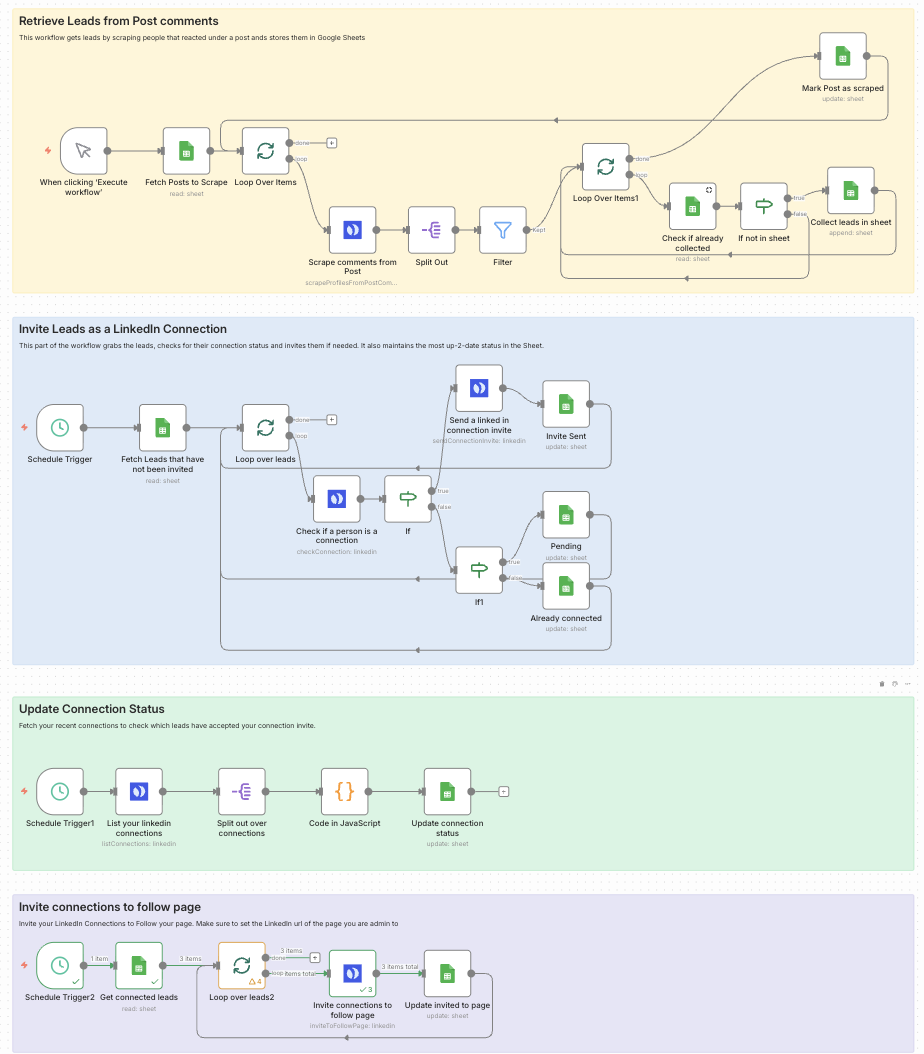
This workflow is shown in the yellow section of your diagram: Retrieve Leads from Post comments.
Its job is simple:
 Scrape engaged users from LinkedIn posts
Store them in Google Sheets
Prevent duplicates
1. Add LinkedIn Post URLs
Go to any LinkedIn post → click ••• → Copy link to post → paste into the Posts tab in your Google Sheet.
Choose posts from:
-
Your competitors
-
Niche creators
-
People with highly engaged audiences
2. Connect Browserflow to n8n
Inside n8n:
-
Open a Browserflow Action
-
Enter your Browserflow API key
-
Set your Browserflow flow to scrape:
-
People who commented
-
OPTIONAL: People who liked a post
-
The scraping runs automatically inside the workflow.
What this workflow does
-
Fetches all posts from Google Sheets
-
Loops through each post
-
Calls Browserflow to scrape commenters/likers
-
Splits the results into individual leads
-
Filters out invalid or duplicate profiles
-
Checks if the lead is already in the sheet
- If not, the workflow appends the lead
-
Marks the post as “scraped” to avoid reprocessing
All of this happens without manual input.
 Step 2: Invite Leads as LinkedIn Connections (Outreach Workflow)
Shown in the blue section of your workflow diagram.
This automation handles sending connection invites, checking statuses, and updating your sheet.
What this workflow does
-
A Schedule Trigger starts the workflow (e.g., every 10 minutes).
-
The workflow fetches leads who haven’t been invited yet.
-
It loops through each lead.
-
For every lead, it checks using Browserflow or LinkedIn API:
 Is this person already a connection?
-
Depending on the result:
-
Not connected → Send LinkedIn invite
-
Pending → Mark as pending
-
Already connected → Mark as connected
-
-
The Google Sheet updates with the correct status and timestamp.
 Optional LinkedIn Premium Invite Message
If you have Premium, you may add a message.
If not—skip it.
LinkedIn gives 3 free invite messages per month, so it’s better to send invites without a note.
 Setup steps
After importing the workflow:
-
Reconnect your Google Sheets credentials
-
Reconnect your Browserflow or LinkedIn API nodes
-
Map the appropriate columns from your Google Sheet
-
Set the schedule interval for sending invites
This workflow will now run continuously until all leads are processed.
 Step 3: Update Connection Status (Acceptance Tracking Workflow)
This corresponds to the green section of your diagram.
Its purpose is to track which leads have accepted your invitation.
What this workflow does
-
A Schedule Trigger starts the workflow
-
n8n fetches your most recent LinkedIn connections via Browserflow
-
The workflow loops over these connections
-
For each connection, it updates the matching row in Google Sheets
-
Mark as connected
-
Add a timestamp
-
This ensures your sheet is always up to date.
 Step 4: Invite Connections to Follow Your Company Page
Shown in the purple section of your diagram.
Once a person accepts your connection invite, another automation takes over:
What this workflow does
-
Fetches your leads from Google Sheets
-
Looks for leads who:
-
Are connected
-
Have not yet been invited to follow your company page
-
-
Uses Browserflow to:
-
Visit your LinkedIn “Connections” page
-
Invite them to follow your company page
-
What you must configure:
-
Enter your Company Page URL into the last action of the workflow.
-
Make sure you are an Admin of the page
-
Connect Browserflow with your API key
-
Map your Google Sheet columns
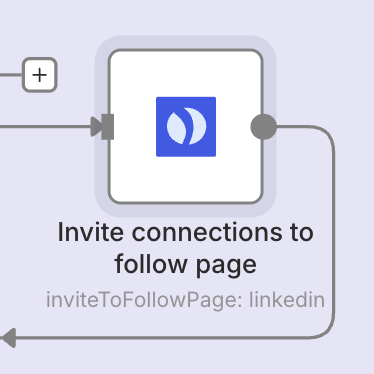
This workflow will automatically send “Follow Page” invites to new connections.
 Final Result: Your Fully-Automated LinkedIn Growth Engine
With Browserflow + n8n working together, you now have:
Automated lead scraping
Target users who engage with posts in your niche.
Automated LinkedIn connection requests
Sent only to new, unprocessed leads.
Automatic acceptance tracking
Your sheet always knows who accepted.
Automated company-page follow invites
Turn every new connection into a company page follower.
 Centralized Google Sheets dashboard
Everything is logged, time-stamped, and fully trackable.
This workflow saves hours every week, increases your reach, grows your company page, and ensures consistent LinkedIn activity—with zero manual work.
Please let me know if you need help with the above! Happy Automating🚀