CONTEXT: I have already subscribed to n8n and I had been working in it for days. I had to shut off my computer and now it doesn’t remember my login. From the info I saved, it won’t take my password. I’ve gone to where my password and info for n8n is, and that information gives me an invalid error. So I accidentally created this one trying to put in my N8N user account again.
INFORMATION: I’m working in conjunction with Jobescape. Everytime I try to start over the errors keep popping up in different places. I’M STUCK and have been for more than 3 days. Does anybody have any experience with it?
I pasted what I was given to set this up and multiple times. I get different errors. Can anybody help? Yes, I’ve contacted Jobescape. Hell i even went through the lessons before this one just to make sure I didn’t miss anything. I know the program has been updated since the pictures, but still. I went off the text and checked my work with the graphic.
I’ve also used the “If” and it won’t give me the 2 arrows only the 1. If I could get into n8n I could show you. Sorry, thanks in advance.
REFERENCE:
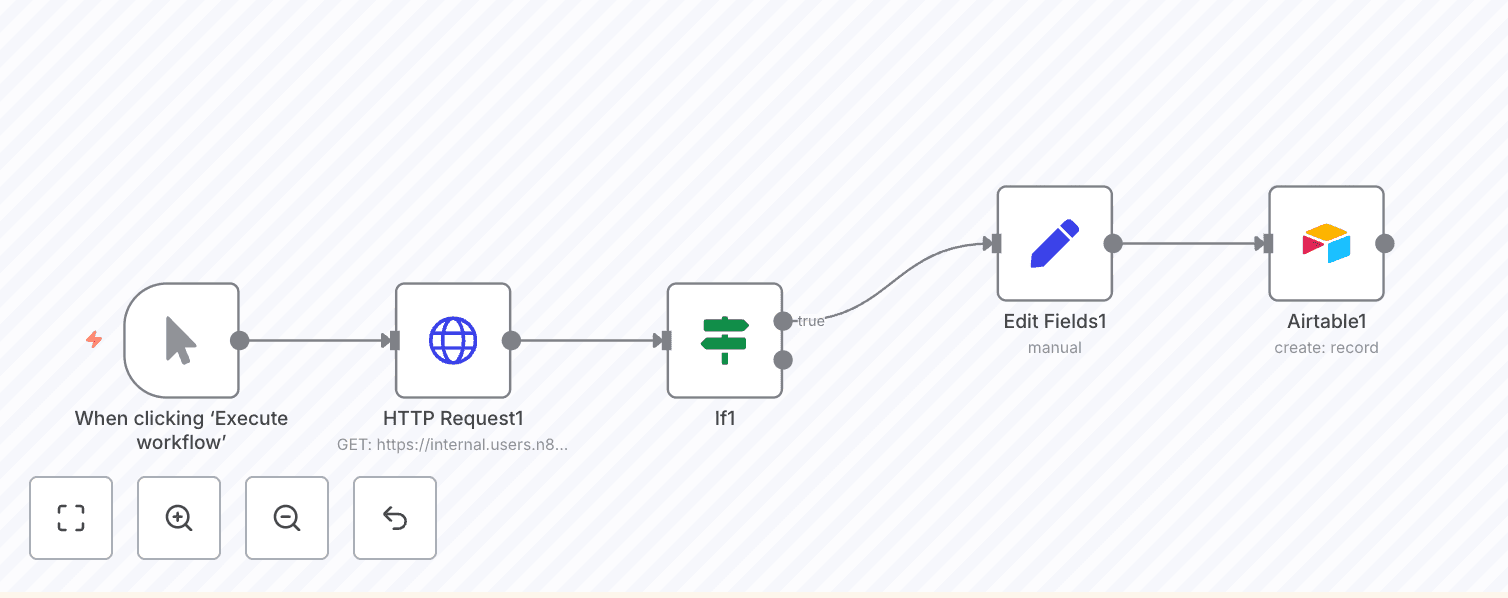
Here’s how your workflow is shaping up:
n8n
template
Download
You now have a filtered list of orders where orderStatus = processing, all flowing into Airtable.
But think about it:
You don’t need five fields if you only care about two.
That’s where the Edit Fields (Set) node comes in. This tool lets you strip down incoming data to just what you want to pass forward.
Why this matters
Clean data runs faster and feels better to work with. Fewer fields mean:
-
Faster execution
-
Lower storage use
-
Cleaner Airtable base
And if you ever hand off this workflow, less clutter means easier collaboration. Keep only orderID and employeeName
Step 1: Insert the Edit Fields node
-
Hover over the True branch of the If node
-
Click the + and insert a new node
-
Search for and select Edit Fields (Set)
If the canvas starts to feel crowded, just drag the Airtable node a bit farther out.
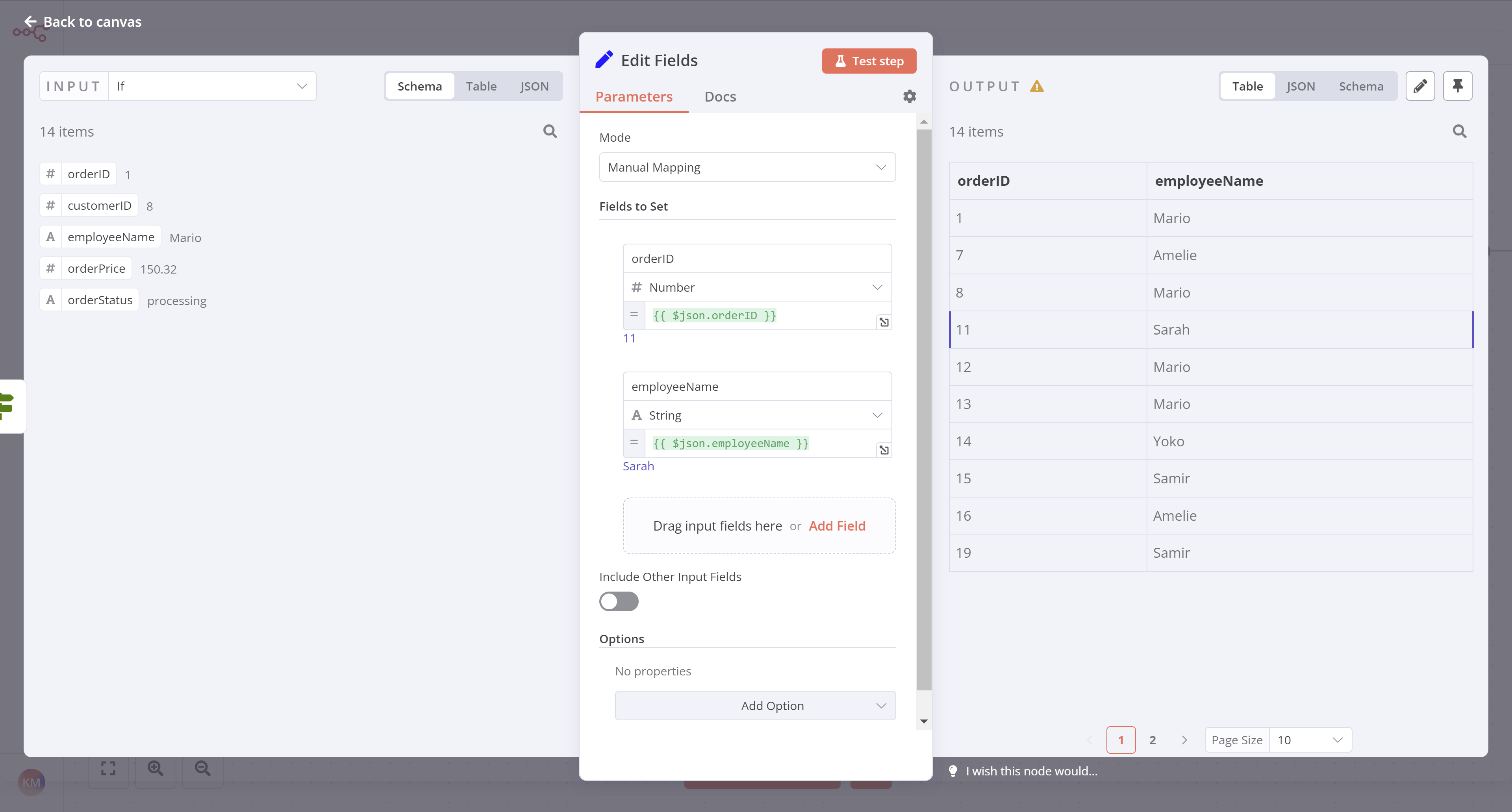
Step 2: Configure the Edit Fields node
-
Set
Modeto Manual Mapping -
Under Fields to Set, drag in:
-
If > orderID -
If > employeeName
-
Set Include Other Input Fields to
false -
Click Execute step
You should now see data with only two fields. Nice and tidy.
Step 3: Create new Airtable table
-
In your Airtable base, add a new table
processingOrders -
Delete default rows
-
Rename and configure columns:
-
orderID(primary field): Number -
employeeName: Single line text
Step 4: Update the Airtable node
-
Reconnect it: Edit Fields → Airtable
-
Open the Airtable node window
-
Change the Table field to
processingOrders -
Hit Execute step to test
At this stage, your workflow should now look like this:
Airtable should now show only 14 rows, each with two fields.
RESULT: Please give me any tips that you can give me so the WHEN I DO get back into my real account it will hopefully work.
Thanks in advance.
