I had this issue a few times and this is how I resolved the problem:
- Leave your workflow and go to n8n → Credentials.
- Go to your Gmail credential.
- Even if your account shows as connected. Locate and select the Sign in with Google option (see attached)
- Note: When you select that option, the UI might change and you might have to find that button and select it at the bottom of the connection page.
- When you connect, look at your browser to make sure a pop-up window is not being blocked. Unblock it, if necessary.
- Select your account (like [email protected])
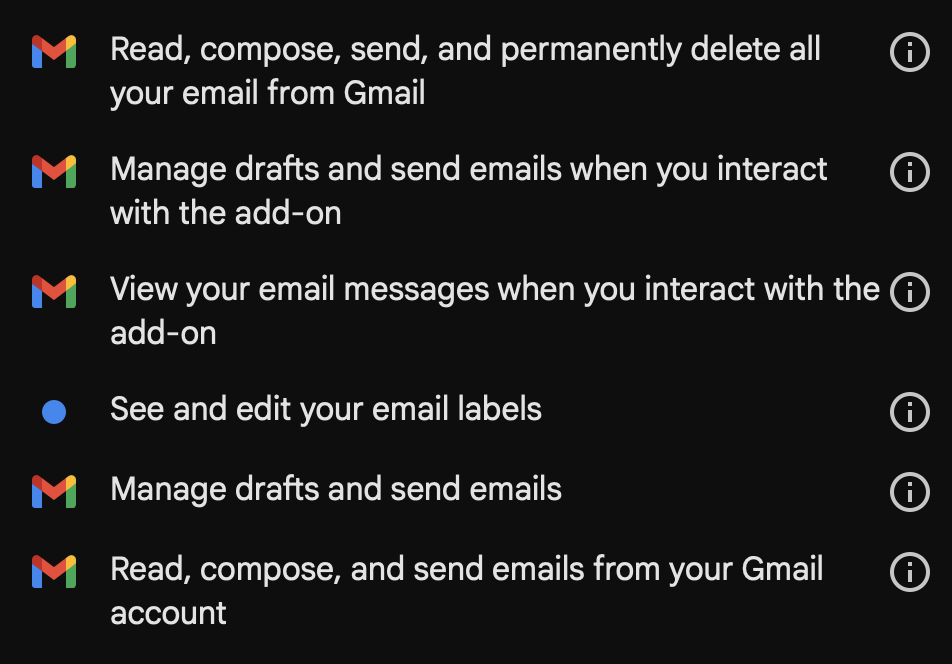
- When you get to the dialog that has a title like “wants to access your Google Account”, read all the settings and make sure those are what you require for your workflow to run (see attached).
- If not, close the dialog, go back to https://console.cloud.google.com, make the necessary adjustments and then start back at step 1 here.
- Make sure scroll to the bottom of the access dialog and select the Allow button (see attached)
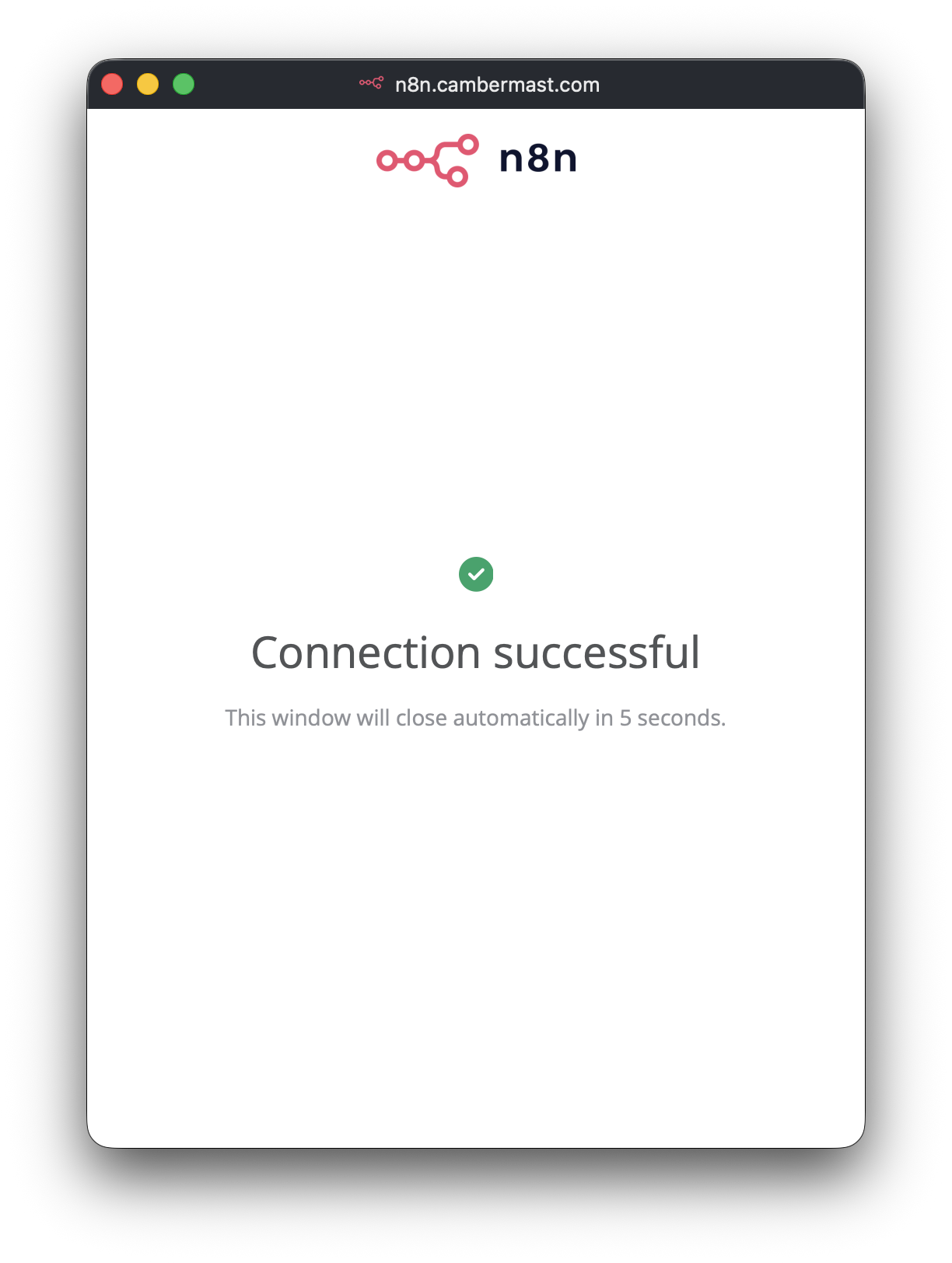
- At the end of the process, you should see a Connection successful option. Now you can close the dialog, Save your n8n Gmail credentials (if applicable) and then try your workflow again.
I hope this helps! -Bill