How can I revert my cloud instance from version 2 to 1? I updated today and a simple node (extract HTML content) breaks my workflow and I don’t see any easy fix. It was working just fine before.
The input is html content from “data” property and sometimes that html doesn’t contain the elements with the given selectors and before, the node was returning an empty array but now it throws an error with a completely misleading message: No property named “data” exists!
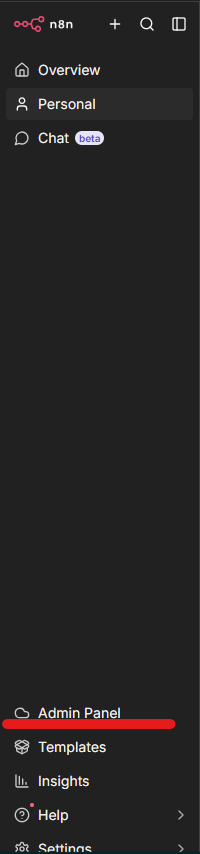
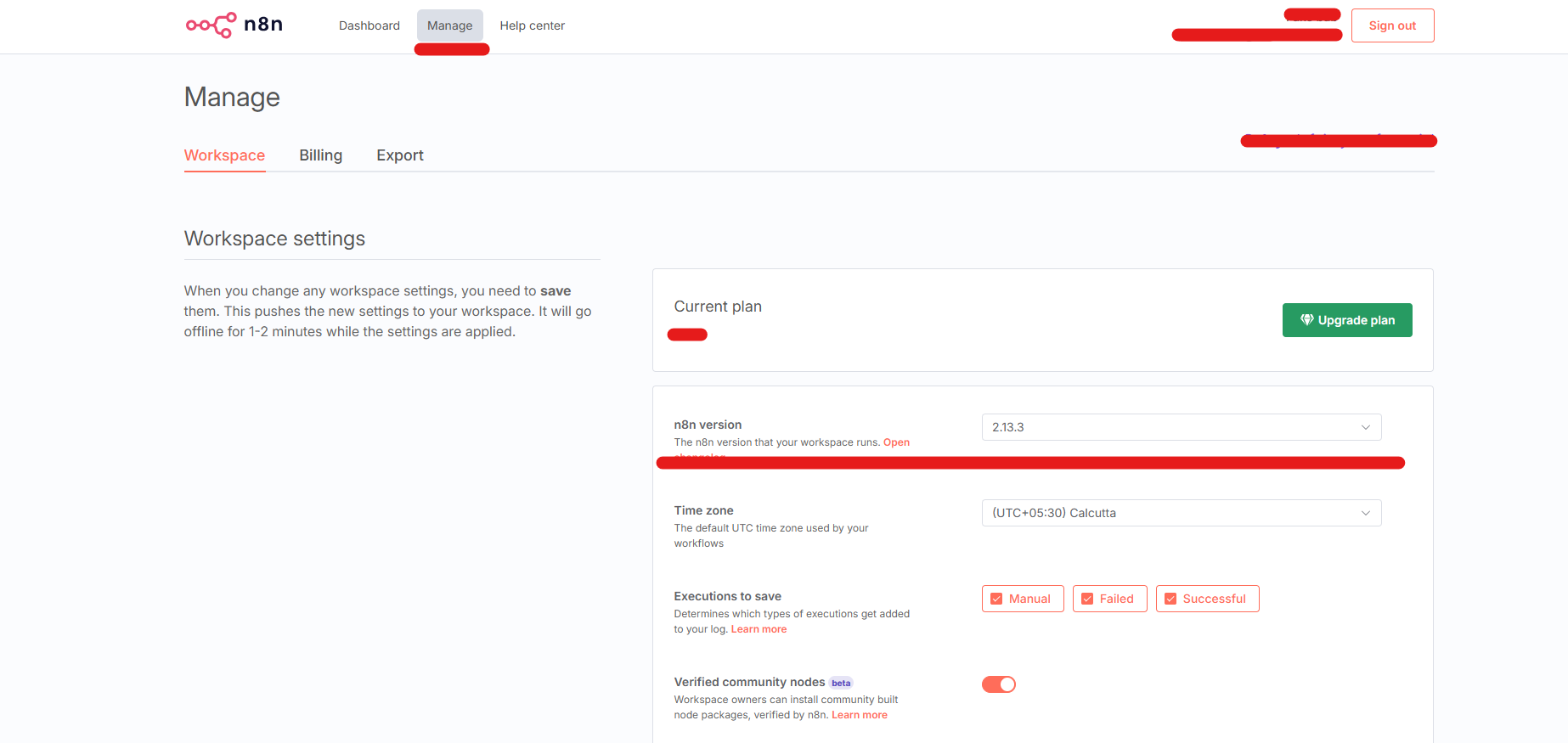
And now in my admin panel I don’t have the option to change the N8N instance version to 1.
Great job from N8N ruining nodes that were working just fine before.
You can’t downgrade to n8n v1, as it’s a legacy version that is no longer used.
The node Extract HTML content wasn’t changed much since v1.
The error you are receiving is related to the improper inputs, where there is no ‘data’ property. V1 has a less strict type validation, so you might not have seen the error.
Please, share the workflow.
You can select all nodes with Ctrl+A and copy them with Ctrl+C. Then, past the content after pressing the button </> with Ctrl+V.
did you try looking at the actual error message in the browser console? sometimes the UI doesnt show the full error. also which version exactly are you coming from — v1 or earlier v2? the extract html content node logic changed between 1 and 2, so if youre getting “no property named data” it might just be your input mapping thats wrong.
All the inputs have “data” property, which also contains HTML content. I can share the workflow, but you don’t have the sources (URLs) that I use for the workflow. I will paste the part of the workflow that triggers the error (sometimes, when the crawled websites don’t have certain elements targeted by the CSS selectors):
I know how frustrating it is for you that your workflow broke due to v1–> v2 update.
However, the short answer is: no, i do not think it is not possible to downgrade your version using the n8n Cloud Admin Panel.
In v1: HTML Extract returned [] (empty array) when selectors didn’t match
In v2: It now throws an error with the misleading message “No property named ‘data’ exists”
This occurred when v2 changed how binary data is structured and made error handling stricter.
@Adrian_Jecan Can you share what the node before HTML Extract outputs i mean the structure? your HTML Extract node configuration? and whether the HTML is in JSON or binary data?