Sales teams and consulting firms that respond to RFPs deal with a timing problem. Proposals take days to write properly. But RFPs arrive in a shared inbox, get noticed at varying levels of urgency, and by the time someone reads the 40-page document and understands the requirements, evaluation criteria, and deadline — sometimes the window for a competitive response has already shrunk.
The RFPs that get the best responses are the ones where the team knew about them early and understood what was being asked before starting to write.
Built a workflow that processes every RFP the moment it arrives in Gmail — extracts requirements, criteria with weights, deadline urgency, budget range, and the exact questions that need answers — and posts the full brief to Slack within about 15 seconds.
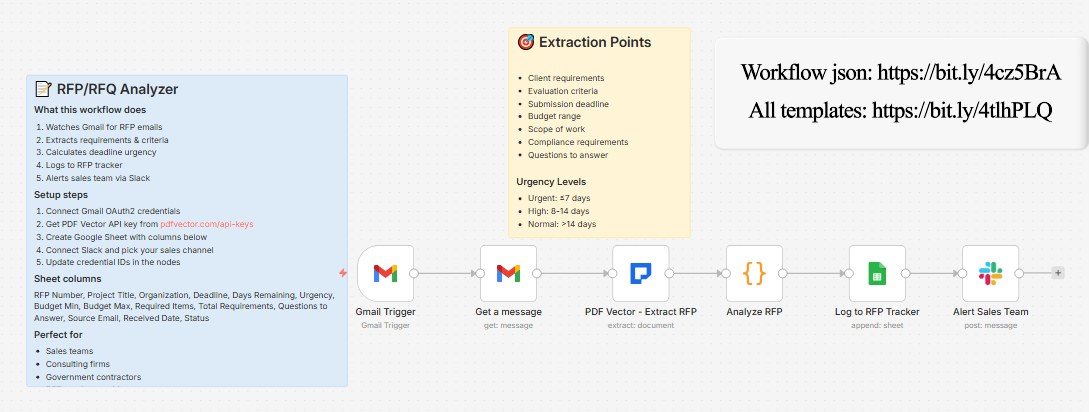
What it does
RFP email arrives in Gmail → downloads PDF attachment → extracts full opportunity data → calculates days until deadline and urgency level → logs to RFP tracker → alerts sales team on Slack
About 12-15 seconds per RFP.
What gets extracted
Opportunity basics:
-
Issuing organization, project title, RFP number
-
Submission deadline, submission method
Scope and requirements:
-
Project scope description
-
All requirements — each tagged as Required / Preferred / Optional with category
-
Required qualifications
Evaluation criteria:
-
Each criterion with percentage weight
-
e.g., “Technical Approach: 40% | Experience: 25% | Price: 20% | Timeline: 15%”
Budget:
-
Min and max budget range
-
Formatted automatically: “$250,000 - $500,000” or “Up to $750,000”
Timeline:
-
Project start and end dates
-
Key milestones
Questions to answer:
- Exact questions the RFP requires responses to (numbered list)
Compliance requirements:
- Any mandatory certifications, legal requirements, or submission format rules
Deadline urgency — auto-calculated
Days remaining calculated from today’s date:
-
0 or less → OVERDUE
-
1-7 days → Urgent
-
8-14 days → High
-
More than 14 days → Normal
The date parser handles multiple formats including “March 15, 2025 at 5:00 PM EST” — common in government RFPs.
What lands in Slack
📋 New RFP Received

Project: IT Infrastructure Modernization Services

Organization: City of Austin

RFP #: RFP-2025-IT-0047

⏰ Deadline: April 30, 2025

Days Remaining: 22 (Normal)

💰 Budget: $500,000 - $1,200,000

📝 Requirements:

• Required: 14

• Preferred: 6

• Questions: 8

Evaluation Criteria:

Technical Approach: 35%

Relevant Experience: 25%

Project Timeline: 20%

Price: 20%
The team sees the key brief without opening the PDF. The criteria weights tell you immediately where to focus the proposal effort.
What lands in Google Sheets (RFP Tracker)
Each row: RFP Number, Project Title, Organization, Deadline, Days Remaining, Urgency, Budget Min, Budget Max, Required Items (count), Total Requirements (count), Questions to Answer (count), Source Email, Received Date, Status (defaults to “New”)
Sort by Days Remaining to see what needs immediate attention. Filter by Urgency = Urgent to surface your priority queue. Update Status manually as proposals progress.
Setup
You’ll need:
-
Gmail (where RFPs arrive)
-
Google Sheets (free)
-
n8n instance (self-hosted — uses PDF Vector community node)
-
PDF Vector account (free tier: 100 credits/month)
-
Slack (for sales team alerts)
About 15 minutes to configure.
Download
Workflow JSON:
Full workflow collection:
Setup Guide
Step 1: Get your PDF Vector API key
Sign up at pdfvector.com — free plan works for testing.
Step 2: Create your Sheet
Headers in Row 1:
RFP Number | Project Title | Organization | Deadline | Days Remaining | Urgency | Budget Min | Budget Max | Required Items | Total Requirements | Questions to Answer | Source Email | Received Date | Status
Step 3: Import and configure
Download JSON → n8n → Import from File.
Gmail Trigger + Get a message:
-
Connect Gmail (OAuth2)
-
Add filter if needed:
subject:(RFP OR RFQ OR "request for proposal") has:attachment
PDF Vector - Extract RFP:
-
Add credential (Bearer Token), paste API key
-
Uses
attachment_0— correct for Gmail attachments
Log to RFP Tracker:
- Connect Google Sheets, paste Sheet ID
Alert Sales Team:
- Connect Slack, select your sales channel
Accuracy
Tested on government RFPs, corporate RFQs, and consulting firm bid documents.
-
Project title, organization, RFP number: ~97%
-
Submission deadline: ~95% — handles most common date formats including timezone variants
-
Requirements list with priority tags: ~91%
-
Evaluation criteria with weights: ~94% — very reliable in structured scoring tables
-
Budget range: ~89% — depends on how explicitly stated
-
Questions to answer: ~92% — reliable when questions are numbered and clearly delineated
Government RFPs from agencies like SAM.gov, state procurement portals, and municipal systems tend to have the most consistent formatting and extract best.
Cost
3-4 credits per RFP document. Free tier handles ~25-30 RFPs per month.
Customizing it
Bid/no-bid decision support:
Add a Code node after Analyze RFP that checks criteria against your firm’s capabilities — flag any RFP where you meet fewer than X of the Required qualifications.
Urgency-based routing:
Add an IF node before the Slack notification — Urgent RFPs go to a separate #rfp-urgent channel that pages the BD lead, Normal priority goes to the standard #rfp-pipeline.
Connect to a CRM:
After logging to Sheets, add an HTTP Request to create an opportunity in Salesforce, HubSpot, or Pipedrive with the extracted data.
Limitations
-
Requires self-hosted n8n (PDF Vector is a community node)
-
Only processes first PDF attachment — multi-file RFP packages need a loop
-
Deadline date parser handles most formats but some unusual government date formats may return “N/A”
-
Criteria weights not always explicitly stated in all RFPs — some use qualitative language instead
Questions? Drop a comment.