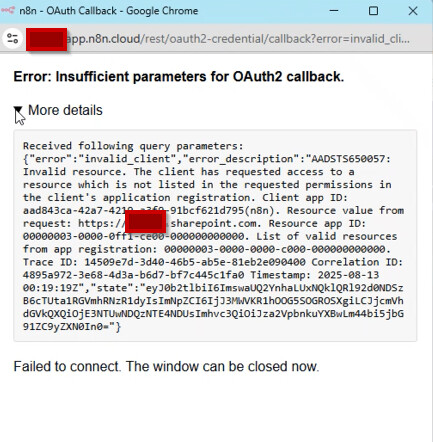
We are consistently getting errors whereby we are unable to authenticate for SharePoint within our n8n tenancy. We have fully removed the n8n enterprise app from the tenancy and have tested on separate n8n instances and are still experiencing the issue.
Short version: this isn’t an n8n bug. Azure AD is rejecting the OAuth request before n8n ever gets a valid code, so n8n shows its generic “Insufficient parameters for OAuth2 callback.” The real error is in the blob you pasted:
AADSTS650057: Invalid resource: The client has requested access to a resource which is not listed in the requested permissions in the client's application registration.
What that means
Your OAuth flow is hitting the v1 Microsoft endpoint and is sending a resource= for SharePoint Online (00000003-0000-0ff1-ce00-000000000000).
But the app registration (client ID) you’re using either:
no longer exists (you said the app was removed), or
exists but does not have SharePoint permissions configured/consented.
Because Azure returns an error instead of code/state, n8n can’t finish the handshake and shows the callback message.
How to fix (pick the path that matches what you’re integrating with):
If you’re calling SharePoint/Graph with a new app
Create a fresh App Registration in Entra ID (Azure AD).
Add the redirect URI exactly as used by n8n Cloud: https://app.n8n.cloud/rest/oauth2-credential/callback
For Microsoft Graph (e.g., SharePoint via Graph): offline_access Files.ReadWrite.All Sites.ReadWrite.All (choose the minimum you need).
Or for SharePoint REST directly, either switch to Graph scopes or use the v1 flow and add SharePoint delegated app permissions (e.g., AllSites.FullControl) to the app.
Grant admin consent for the scopes/permissions you chose.
In n8n, delete the old credential (the one pointing at the removed app) and create a new OAuth2 credential with the client ID/secret from the new app and the settings above. Then re-authorize.
If you must stay on the v1 endpoint (using resource= for SharePoint)
Keep using https://login.microsoftonline.com/<tenant-id>/oauth2/authorize and …/token
Ensure the same app registration has SharePoint Online delegated permissions (e.g., AllSites.Read / AllSites.FullControl as needed) and that admin consent is granted.
Make sure the resource you pass matches the target service (for SPO: 00000003-0000-0ff1-ce00-000000000000 or https://{tenant}.sharepoint.com), and that the app has permissions to that resource.
Common gotchas to double-check
Redirect URI in the app exactly matches n8n Cloud’s callback URL.
Using the right tenant in the URL (avoid /common if consent is tenant-specific).
No stale client ID/secret left in n8n after the old app was deleted.
No leftover resource= query param in n8n when you switch to v2 (scopes-only).
Once Azure returns a valid code to the callback, the n8n message disappears and the credential will connect normally. Hope that helps..!!
Hi , okay have attempted re-creation with my colleauge and we are running into the same error again whereby it is referencing the deleted app - aad843ca-42a7-4219-a3f9-91bcf621d795
What appears to be occuring is the n8n is still trying to reference it - is there anyway to get this refreshed or deleted on the n8n side? We are using the cloud version of n8n.
You’re seeing the old Client ID because some n8n credential (or node) is still using it. Azure is just echoing what n8n sends in the authorize URL. On n8n Cloud there isn’t a hidden cache you need support to purge—once you delete or reset the credential that contains the old Client ID and point your nodes to the new one, the old ID will stop appearing.
Here’s the quickest way to flush it end-to-end:
Find and remove every reference to the old credential
In n8n: Credentials → search the name of the Microsoft/SharePoint/Graph OAuth2 credential you used originally.
Click it → Show usages (n8n lists every workflow/node using it).
For each workflow:
Open the node that uses it → Credentials tab → select a brand-new credential (create it first; see step 2).
Save the node and the workflow.
When no workflows use the old one, Delete the old credential.
If deletion is blocked, that means there’s still at least one node/version using it (often an active published version). Deactivate the workflow, switch the credential in the version you have live, save, and try deletion again.
Tip: If your colleague duplicated workflows or has them in another Project, repeat the same in that project. Credentials are project-scoped.
Create a clean OAuth2 credential (v2.0 recommended)
Create a new credential with a unique name (e.g., “MS Graph OAuth2 v2 – 2025-09-01”) and set:
Client ID / Secret: from your new App Registration
Redirect URI (must match App Registration): https://app.n8n.cloud/rest/oauth2-credential/callback
Scopes (no resource= on v2): pick only what you need, e.g. offline_access Files.ReadWrite.All Sites.ReadWrite.All (Graph)
Click Connect / Reauthorize so Azure returns a code → tokens.
Do not put client_id= or resource= into the Auth URL query string. If you previously customized the Auth URL and left those in, Azure will keep seeing the old ID even if you changed the fields.
Repoint nodes and (re)publish
Open each affected node → pick the new credential by name → Save.
If you run published workflows, republish (or deactivate/activate) so the live version uses the new credential.
Now delete the old credential (it should succeed).
Common reasons the old Client ID keeps showing up
A different workflow version (the active/published one) still references the old credential.
A different project has a copy of the credential still in use.
The Auth URL was customized and still contains a hard-coded client_id= aad843ca-….
The credential was “Edited” but the node is still pointing at an older credential object (create a fresh one and reselect).
Browser caching rarely causes this, but try the OAuth step in an Incognito window to rule it out.
If you must use v1 (resource-based)
If you’re intentionally on the v1 endpoints, ensure:
Ensure you are using a MS tenant admin account. This won’t work if you don’t have the right permissions.
n8n will request the correct scopes that were missing before.
Once the connection is successful you can open up a workflow, add a Sharepoint node and create new credentials. This time, because the scopes were added already, you won’t run into the error 403 problem.
The issue is that the official Sharepoint Node does not automatically add the right scopes (or give you the option to do so) when you create a credential through there. This method circumvents that and adds the scopes that are needed so you can use the official Sharepoint n8n node.