Hi all,
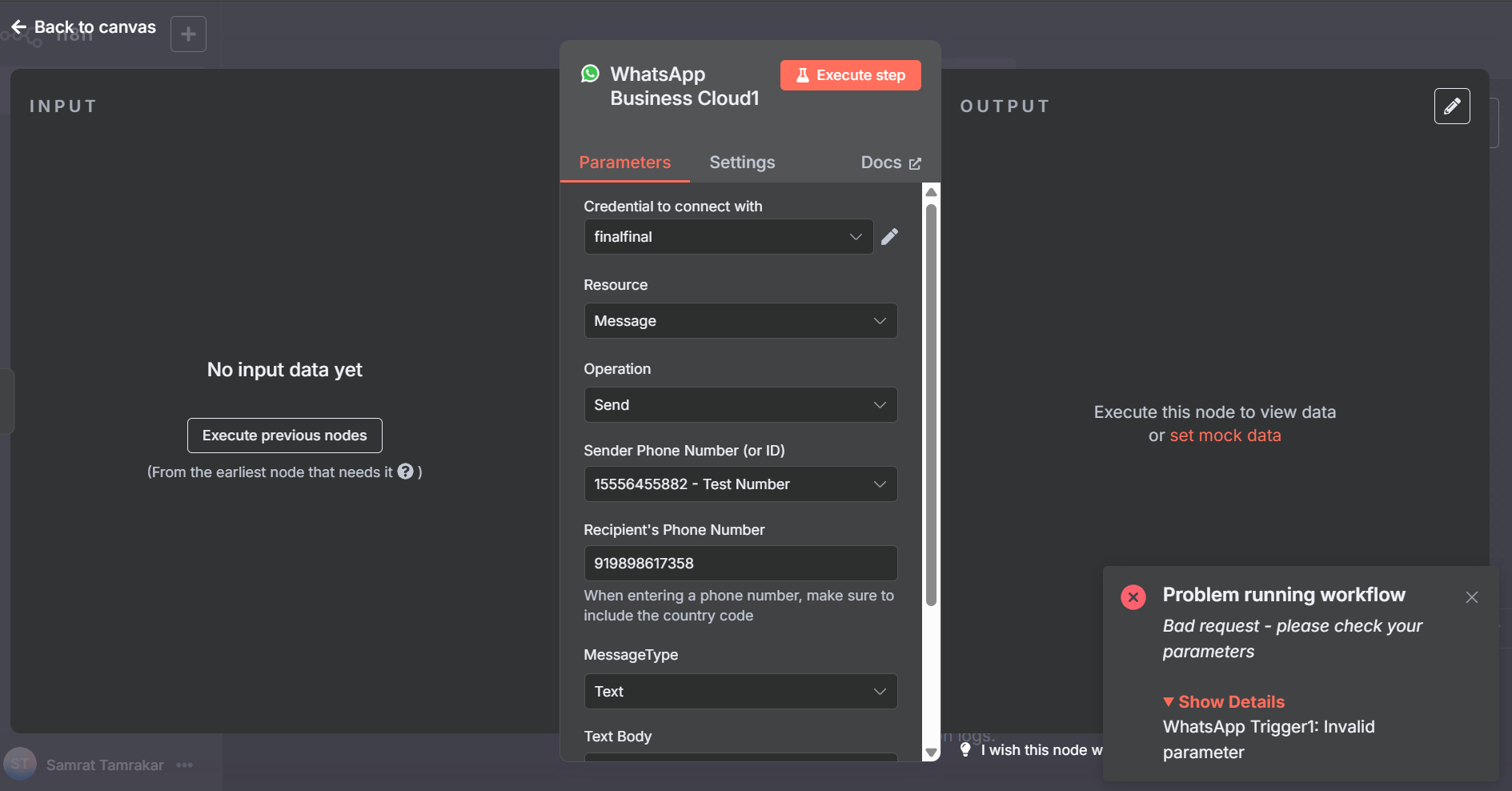
I’m running into a consistent issue with the WhatsApp Trigger node in n8n. Every time I try to execute the workflow, I get this error:
Hi all,
I’m running into a consistent issue with the WhatsApp Trigger node in n8n. Every time I try to execute the workflow, I get this error:
Hi there, welcome to the community, can you give more screenshot of the workflow, of the whatsapp trigger and the error itself
but looking from the error saying Bad Request and invalid parameters, that means there are something wrong on your side on how you configured this whatsapp trigger node
if you can give me more screenshot i can definitely help pin point the error
Hey! Thank you for your response.
I’m sharing the screenshots of the error and the workflow below. I’m currently hosting this on Node, if that helps. I’m fairly confident that I’ve set everything up correctly, as I’ve followed multiple tutorials—most of which show the same steps.
Here’s one of the video references I used:
on the recipient phone number, try without the +, so just 919…
I did try it, but it still shows the same problem: “Bad request – please check your parameters.”
WhatsApp Trigger 1: Invalid parameter.
The WhatsApp trigger is set to “On Message.”
and just to make sure, if your facebook/meta app is still on testing, you need to add this recipient phone number as a test users in your app
have you also done that?
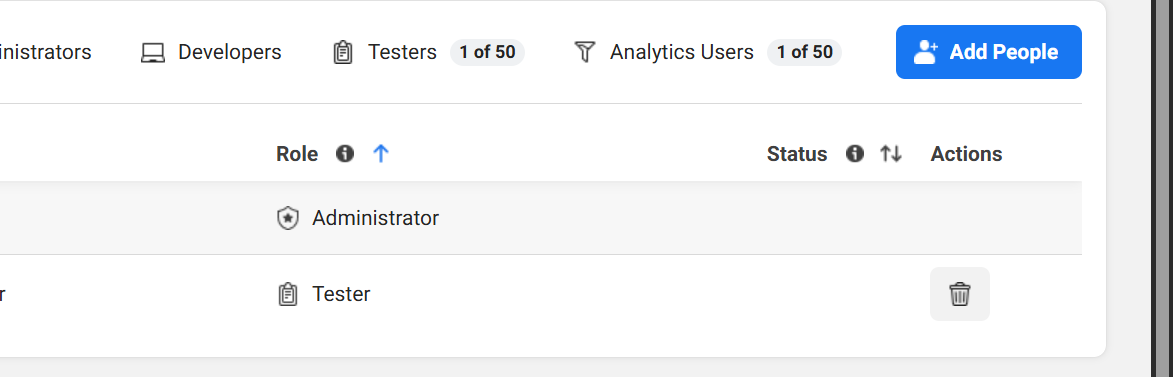
When I tried to add test users in the app, it showed a message (as seen in the screenshot).
What I did was go to Roles and add the user from there (as shown in the screenshot).
However, it still didn’t work — in the recipient number field, I used the phone number that is linked to the test user’s Facebook account.
But it still says “Bad parameter” for some reason.
I am Facing this issue, followed the same video, Any resolution to it?
The webhook url is localhostits not exposed to the web you will have to create a tunnel and expose it
I’m having the same problem as OP, I’m also trying to do this locally with the community edition. I do get your point, but what’s no clear for me is if we need to change the Node’s Webhook URL parameters or do we have to add a Webhook that connects to the WhatsApp/Facebook API before the Whatsapp node listening for incoming messages?
Yes, you need to enter your n8n webhook URL (the public URL where your n8n instance is accessible) in the Meta (Facebook/WhatsApp) Developer Platform when configuring the webhook for your WhatsApp app. This allows Meta to send webhook events (such as incoming messages) directly to your n8n workflow.
If you are running locally and exposing n8n via ngrok or a reverse proxy, always ensure the WEBHOOK_URL matches the public address, not localhost or a private IP, otherwise Meta/WhatsApp cannot reach your webhook.
Just make sure your n8n instance is configured to generate public webhook URLs by setting the WEBHOOK_URL environment variable, and use the WhatsApp Trigger node as designed.
Thanks for the help, I was able to connect my local Whatsapp node to the Internet, in case someone is having the same issue this is what I did:
Connect the local N8N Starter kit to the Internet:
You’ll see that after all this when you start the Workflow again the error will not appear and that the WhatsApp node properties will now have the webhooks properties changed to your ngrok dev domain and not local host anymore, also the connection to your Whatsapp App will be successful
Most of the video run it on n8n cloud but I faced this issue when trying to run it locally
run this docker comment with your ngrok
docker volume create n8n_data
docker run -it --rm
–name n8n
-p 5678:5678
-e GENERIC_TIMEZONE=“<YOUR_TIMEZONE>”
-e TZ=“<YOUR_TIMEZONE>”
-e N8N_ENFORCE_SETTINGS_FILE_PERMISSIONS=true
-e N8N_RUNNERS_ENABLED=true
-e WEBHOOK_URL={{insert your link here}}
-v n8n_data:/home/node/.n8n
i hope this help!
This topic was automatically closed 90 days after the last reply. New replies are no longer allowed.